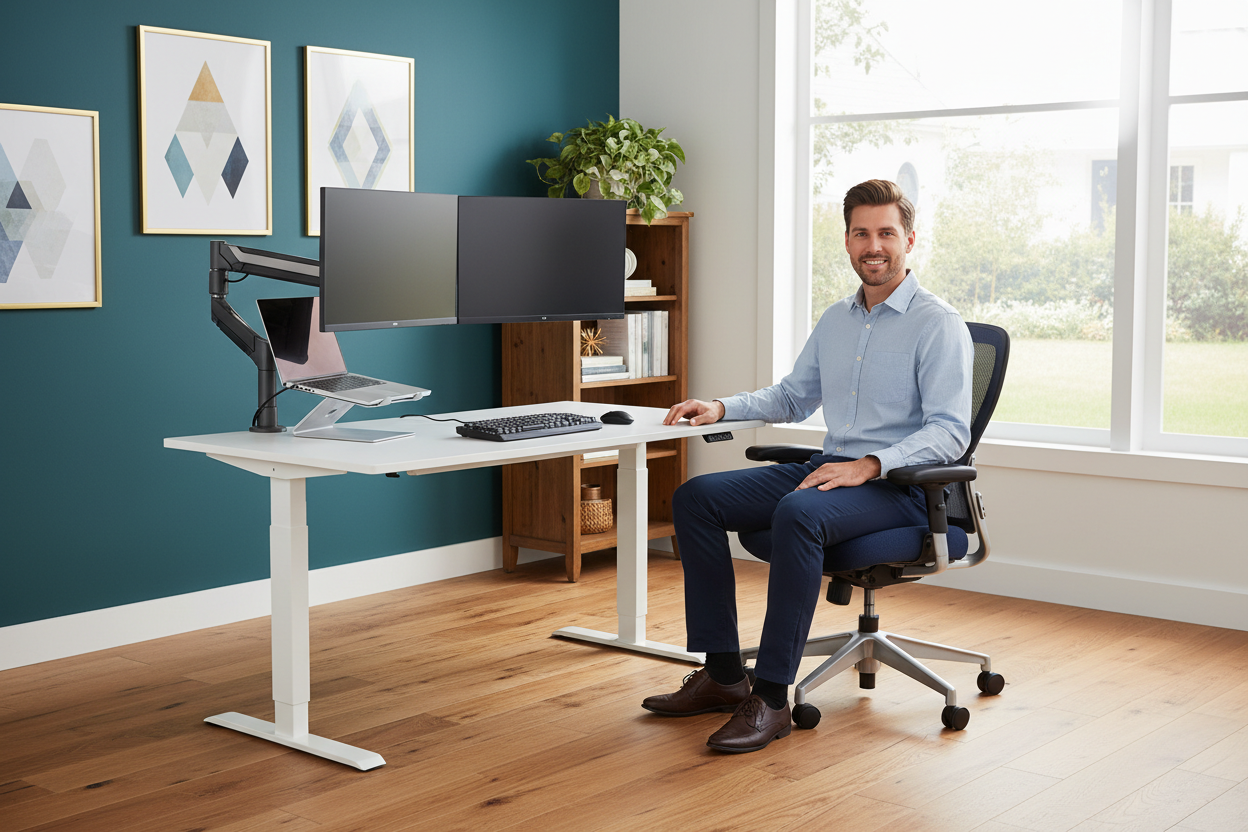
You bought two 27-inch monitors because you needed the screen real estate. Then you set them side by side on your desk and realized the desk itself had become the bottleneck. Cables everywhere. No room for a keyboard tray. Your coffee mug is now living on the floor.
Sound familiar? You're not alone. The dual-monitor dream runs headfirst into a very physical constraint: most desks simply weren't designed for it. But a 47-inch standing desk changes that equation — if you set it up right.
This guide walks through the actual geometry of fitting two large displays on a 47-inch surface, how a gas spring monitor arm reclaims the desk space you thought you'd lost, and why the frame construction matters more than most buyers realize. By the end, you'll have a clear picture of exactly what to buy and how to arrange it.
Section 1: The Spatial Geometry of a 47-Inch Dual-Monitor Desk
Let's Do the Math First
Before anything else, let's settle the question everyone Googles but rarely finds a straight answer to: can two 27-inch monitors actually fit on a 47-inch desk?
A 27-inch monitor measures 27 inches diagonally. The actual horizontal width of the display panel — not counting the stand or bezel — is roughly 23.5 inches for a standard 16:9 screen. Add a typical bezel of about 0.4 inches on each side, and the total width of one monitor unit is approximately 24.3 inches.
Two monitors side by side: 24.3 × 2 = 48.6 inches.
That's 1.6 inches wider than your desk. So on paper, it doesn't fit. But here's what the math misses: nobody places dual monitors perfectly flat and parallel. A natural dual-monitor arrangement angles each screen inward by 15–20 degrees toward the viewer. That slight inward rotation reduces the effective horizontal footprint of each monitor by roughly 1 inch per side.
Adjusted calculation: (24.3 − 1) × 2 = 46.6 inches.
That fits — with about half an inch to spare on each edge. And that's with the monitor stands still on the desk. The moment you move to monitor arms (more on that in Section 2), the stands disappear entirely, and you gain back the 8–10 inches of depth each stand was occupying.

What Actually Lives on Your Desk
A realistic 47-inch dual-monitor workspace typically includes:
- Two 27-inch monitors (angled inward)
- A laptop or laptop stand (positioned to the side or elevated above the desk surface)
- A full-size keyboard and mouse
- A small desk pad or mat
- A webcam or ring light (often mounted to a monitor arm)
- A USB hub or docking station
With monitor stands on the desk, fitting all of that is genuinely tight. With monitor arms, the monitors float above the surface, the stands are gone, and suddenly you have a full 47 × 24 inches of usable desk space — roughly 7.8 square feet — with your screens positioned exactly where your neck and eyes need them.
Depth Matters as Much as Width
Most 47-inch standing desks ship with a depth of 24 inches. That's the sweet spot for ergonomics: it puts a 27-inch monitor at roughly arm's length (20–24 inches from your eyes) when the monitor is positioned near the back edge of the desk. If you're using monitor arms, you can push the screens even further back — or pull them closer — depending on your vision and seating position.
The takeaway: a 47-inch desk isn't just adequate for a dual-monitor setup. It's actually the minimum width where the setup starts to feel intentional rather than crammed.
Shop the 47-Inch Height-Adjustable Standing Desk — $489.38 →

Section 2: The Monitor Arm Multiplier — How a $139.99 Mount Changes Everything
The Problem with Monitor Stands
Factory monitor stands are functional. They hold the screen up. But they do it by planting a wide, heavy base directly on your desk surface — a base that typically measures 8–10 inches deep and 8–12 inches wide. Multiply that by two monitors, and you've surrendered roughly 160–240 square inches of desk space to plastic and metal that exists purely to hold something up.
A monitor arm replaces that entire footprint with a single clamp or grommet mount at the desk edge. The arm extends over the desk, holds the monitor in mid-air, and leaves the surface beneath it completely clear.
Gas Spring vs. Fixed Arms: Why It Matters
Not all monitor arms are equal. Fixed arms require you to manually loosen a bolt, reposition the screen, and re-tighten. Gas spring arms use pressurized cylinders — the same mechanism in office chairs and car hoods — to let you reposition your monitor with one hand, effortlessly, in about two seconds.
For a standing desk, that's not a luxury. It's a necessity. When you transition from sitting to standing, your ideal monitor height changes by roughly 12–16 inches. A gas spring arm adjusts with you. A fixed arm means you're either craning your neck or bending over.
The Full-Motion Single Monitor Arm ($139.99)
For setups where you want independent control of each screen, two single arms give you the most flexibility. The Full Motion Single Monitor Arm supports screens from 13 to 32 inches and handles the weight range that covers virtually every consumer monitor on the market.

Key specs worth knowing:
- VESA compatible (75×75mm and 100×100mm patterns)
- Full 360° rotation — portrait or landscape, your call
- Tilt, swivel, and height adjustment all in one arm
- Cable management channels built into the arm itself
Two of these at $139.99 each = $279.98 for a fully independent dual-arm setup. Each screen moves completely independently, which is ideal if one monitor is your primary work display and the other is a reference or communication screen you glance at occasionally.
Shop the Full Motion Single Monitor Arm — $139.99 →
The Dual Monitor Gas Spring Mount ($131.99)
If you want both monitors on a single pole — one clamp, one cable pass-through, one clean look — the dual gas spring mount is the more elegant solution. It supports monitors from 13 to 32 inches and handles up to 17.6 lbs per arm.

The single-pole design means one clamp on the desk edge instead of two, which matters on a 47-inch desk where edge real estate is finite. Both arms still move independently — you can raise one screen while the other stays put — but the overall footprint is more compact.
At $131.99, it's also the more cost-effective option if you're outfitting both monitors at once.
Shop the Dual Monitor Gas Spring Mount — $131.99 →
How Much Space Does a Monitor Arm Actually Reclaim?
Let's put a number on it. A typical 27-inch monitor stand occupies roughly 9 inches of desk depth and 10 inches of width. Two stands = 180 square inches of desk surface consumed.
Switch to monitor arms: that 180 square inches is now open desk space. On a 47 × 24-inch desk, that's roughly 16% of your total surface area returned to you. That's where your keyboard goes. That's where your notebook goes. That's where your coffee mug finally gets to live on the desk again.
Section 3: Structural Integrity — Why the Frame Matters for a Heavy Tech Load
What's Actually Sitting on Your Desk
People underestimate how much a fully loaded workstation weighs. Let's add it up:
- Two 27-inch monitors: ~12–15 lbs each = 24–30 lbs
- Dual monitor arm: ~12–15 lbs
- Laptop: ~4–6 lbs
- Docking station, USB hub, webcam: ~3–5 lbs
- Keyboard, mouse, desk pad: ~3–4 lbs
- Miscellaneous (headphones, speakers, water bottle): ~5–8 lbs
Total: roughly 51–68 lbs of equipment sitting on your desk at any given time.
A desk frame rated for 92 lbs of load capacity handles that with meaningful headroom. You're not running at the edge of the frame's tolerance — you're operating at roughly 55–75% of its rated capacity, which is where you want to be for long-term reliability.
Why Frame Construction Matters for Standing Desks Specifically
A standing desk frame takes stress that a fixed desk never experiences. Every time you raise or lower the desk, the motor and frame absorb the weight of everything on the surface. Over thousands of cycles, a weak frame develops wobble — first noticeable at standing height, then progressively worse.
The 92 lb frame construction on the 47-inch standing desk isn't just a marketing number. It reflects the gauge of steel used in the legs, the quality of the crossbar connections, and the motor's torque rating. A heavier-rated frame uses thicker steel, which translates directly to less flex and less wobble at standing height.
For a dual-monitor setup specifically, wobble is the enemy. Two large screens amplify any desk movement — a slight vibration at the desk surface becomes a noticeable shake at the top of a 27-inch monitor. A rigid frame eliminates that problem at the source.
Height Range and Ergonomics
The ergonomic case for a standing desk is well-documented: alternating between sitting and standing reduces lower back strain, improves circulation, and — for many people — increases focus during standing intervals. But the ergonomic benefit only materializes if the desk actually reaches the right height for your body.
For seated work, the ideal desk height puts your elbows at roughly 90 degrees with your forearms parallel to the floor. For standing work, the same principle applies — elbows at 90 degrees, shoulders relaxed. For most adults, that means a height range of roughly 28–48 inches covers both positions comfortably.
Pair that with monitor arms that let you set screen height independently of desk height, and you have a setup that adapts to your body rather than forcing your body to adapt to it.
Shop the 47-Inch Standing Desk — $489.38 →
Section 4: Cable Management for a Standing Desk Dual-Monitor Setup
Why Standing Desks Make Cable Management Harder
A fixed desk has one cable challenge: getting wires from the desk surface to the floor without a tangled mess. A standing desk has two: the same challenge, plus the fact that the desk moves up and down by 12–20 inches every time you switch positions.
Cables that are routed tightly for sitting height will pull taut — or worse, pull devices off the desk — when you raise to standing height. Cables routed loosely for standing height create a pile of slack on the floor when you sit. Neither is acceptable in a clean workspace.
The Three-Zone Cable Management System
The most reliable approach divides your cable management into three zones:
Zone 1: The Desk Surface
Use cable clips or adhesive cable channels to route monitor cables, USB cables, and charging cables along the back edge of the desk surface. Keep them flat against the surface and out of your primary work area. Monitor arms with built-in cable channels (like the ones linked above) handle the monitor cables automatically — they route through the arm itself, so there's no visible cable between the monitor and the desk.
Zone 2: The Transition Loop
This is the critical zone for standing desks. Between the desk surface and the floor, you need a cable loop — a deliberate slack section that accommodates the desk's full range of motion. The loop should be large enough that at maximum desk height, the cables are still slack. A cable sleeve or spiral wrap keeps the loop tidy and prevents individual cables from tangling.
A good rule of thumb: measure the desk's full height range (e.g., 28 to 48 inches = 20 inches of travel) and add 6–8 inches of extra loop length as a buffer. So your transition loop should have roughly 26–28 inches of cable length available.
Zone 3: The Floor Run
From the loop to the wall outlet or power strip, use a cable raceway or floor cable cover. This keeps cables off the floor surface, prevents tripping hazards, and makes the workspace look intentional rather than improvised.
Power Strip Placement
Mount your power strip to the underside of the desk frame rather than leaving it on the floor. Most standing desk frames have flat crossbars that accept adhesive cable mounts or zip ties. A power strip mounted under the desk moves with the desk — eliminating the need for a long transition loop on the power cable itself. Your monitor cables, USB cables, and laptop charger all plug into the under-desk power strip, and only one cable (the power strip's cord) needs to manage the height transition.
The Laptop Positioning Question
If you're running a laptop alongside two external monitors, where the laptop lives matters for cable management. Three common approaches:
- Laptop stand on the desk: Elevates the laptop screen to a usable secondary height, keeps it accessible, but consumes desk space.
- Laptop on a side shelf or drawer: Removes it from the primary work surface entirely. Ideal if you're using the laptop purely as a compute unit with the external monitors as your primary displays.
- Laptop arm mount: Mounts the laptop to a dedicated arm, similar to a monitor arm. Keeps it accessible and off the desk surface. Works well if you frequently need to use the laptop's built-in keyboard or trackpad.
For most dual-monitor setups, the laptop-on-a-stand approach is the most practical — it keeps the machine accessible without requiring a dedicated mount, and a good laptop stand costs $20–40.
Section 5: Building the Setup — A Step-by-Step Approach
Step 1: Start with the Desk
Before anything else, get the desk in place and at the right height for your sitting position. Most people set up a standing desk and immediately start loading it with equipment before they've confirmed the ergonomics. Spend 10 minutes sitting at the empty desk, adjusting the height until your elbows are at 90 degrees and your shoulders are relaxed. Save that height as a preset if your desk has memory buttons.
Step 2: Mount the Monitor Arms
With the desk empty, clamp the monitor arm(s) to the back edge of the desk. For a 47-inch desk with two monitors, the ideal placement is roughly centered — one arm at about the 16-inch mark from the left edge, one at the 31-inch mark. This leaves the center of the desk clear and positions each monitor slightly inward of center, which is the natural viewing angle for dual-monitor work.
If you're using a single dual-arm pole, center it at the 23–24-inch mark (the midpoint of the desk).
Step 3: Mount the Monitors
Remove the factory stands from your monitors (usually four screws on the back panel) and attach the VESA mount plate from the monitor arm. Most 27-inch monitors use a 100×100mm VESA pattern — confirm this before purchasing an arm, though virtually all consumer monitors in this size range use that standard.
Hang the monitors on the arms and adjust the gas spring tension if needed. Most gas spring arms have a tension adjustment screw that lets you calibrate the arm's resistance to match your monitor's weight. A properly tensioned arm holds the monitor in place when you let go — it shouldn't drift up or down on its own.
Step 4: Set Monitor Height and Angle
For seated work, the top of the monitor should be at or slightly below eye level. For standing work, the same principle applies — raise the desk to standing height and readjust the monitor arms accordingly. This is where gas spring arms earn their keep: the adjustment takes about two seconds per monitor.
Angle each monitor inward by 15–20 degrees. A simple way to check: sit in your chair, look straight ahead, and note where your eyes naturally land. Each monitor should be centered on that point when you look slightly left or right — not requiring you to turn your head more than about 30 degrees from center.
Step 5: Route the Cables
With monitors in position, route the display cables (HDMI, DisplayPort, or USB-C) through the cable management channels in the monitor arms. Connect them to your laptop or desktop. Then route the power cables along the back edge of the desk surface to the under-desk power strip.
Create your transition loop at the back of the desk, leaving enough slack for the full height range. Secure the loop with a cable sleeve or spiral wrap.
Step 6: Test the Full Range of Motion
Before calling the setup done, run the desk through its full height range — from minimum sitting height to maximum standing height — and watch the cables. Nothing should pull taut. Nothing should catch on the desk frame. The transition loop should absorb the full range of motion with slack to spare.
If anything pulls, add more loop length. It's much easier to fix now than after you've routed everything through cable raceways.
Section 6: The Complete Product Lineup for This Setup
The Foundation: 47-Inch Height-Adjustable Standing Desk
Everything starts here. The 47-inch width gives you the spatial geometry to run two 27-inch monitors comfortably. The height-adjustable frame — rated for 92 lbs — handles the full weight of a loaded dual-monitor workstation without wobble. The white finish works in virtually any home office environment.
47-Inch Standing Desk with Height Adjustment — $489.38
Option A: Dual Monitor Gas Spring Mount (Single Pole)
One clamp, two arms, both screens on a single pole. Cleaner look, lower cost, slightly less independent positioning flexibility. Best for setups where both monitors are the same size and you want a symmetrical arrangement.
Dual Monitor Gas Spring Mount — $131.99
Option B: Two Full-Motion Single Monitor Arms
Maximum independent positioning. Each screen moves completely on its own. Best for setups where one monitor is a primary display and the other is a secondary reference screen at a different height or angle.
Full Motion Single Monitor Arm — $139.99 each
Budget Option: Rackora Dual Monitor Desk Mount
If you want a dual-arm solution at a lower price point, the Rackora Dual Monitor Desk Mount supports 17–32-inch screens and covers the ergonomic basics at $99.00. It's a solid entry point if you're building out a home office on a tighter budget and plan to upgrade the arms later.
Rackora Dual Monitor Desk Mount — $99.00
Section 7: Common Mistakes to Avoid
Mistake 1: Buying a Desk That's Too Narrow
A 40-inch desk with two 27-inch monitors is a compromise from day one. You'll either have the monitors too close together (creating a visual seam right in your primary line of sight) or one monitor will hang off the edge. The 47-inch width isn't arbitrary — it's the minimum where a dual-monitor setup has room to breathe.
Mistake 2: Skipping the Monitor Arms
The most common objection to monitor arms is cost. At $99–$140 per arm, it feels like an add-on expense. But consider what you're getting: the factory monitor stand is a piece of plastic that holds your screen at one fixed height, consumes 80–100 square inches of desk space, and offers maybe 3 inches of height adjustment. A gas spring arm gives you 12–16 inches of height range, full tilt and swivel, portrait mode capability, and your desk surface back. It's not an accessory — it's a core component of a functional dual-monitor setup.
Mistake 3: Ignoring the Transition Loop
This one causes real damage. A cable pulled taut by a rising desk can disconnect a display mid-presentation, damage a port, or — in the worst case — pull a device off the desk. The transition loop is a 10-minute fix that prevents all of that. Don't skip it.
Mistake 4: Setting Monitor Height Once and Forgetting It
Your monitor height needs to change when your desk height changes. If you set the monitors for sitting height and then raise the desk to standing height without adjusting the arms, you'll be looking down at your screens — which defeats the ergonomic purpose of standing. Gas spring arms make this adjustment fast enough that it becomes a natural part of the sit-to-stand transition.
Mistake 5: Overloading the Desk Frame
A 92 lb frame rating gives you meaningful headroom for a typical dual-monitor setup. But if you're adding a large external speaker system, a heavy desktop PC on the desk surface, or multiple large peripherals, add up the weights before assuming you're fine. Running a frame at 90%+ of its rated capacity accelerates wear on the motor and lift mechanism.
Frequently Asked Questions
Can two 27-inch monitors fit on a 47-inch desk?
Yes — with the right setup. Two 27-inch monitors placed flat side by side measure about 48.6 inches wide, which is slightly over the desk width. But angling each monitor inward by 15–20 degrees (the natural ergonomic position for dual-monitor work) reduces the effective footprint to about 46.6 inches, which fits comfortably. Using monitor arms instead of factory stands also eliminates the base footprint and gives you more positioning flexibility.
Do I need monitor arms for a dual-monitor standing desk setup?
You don't strictly need them, but they make a significant difference. Monitor arms eliminate the factory stand footprint (freeing up 80–100 square inches of desk space per monitor), allow you to adjust screen height independently of desk height, and enable the quick repositioning you need when switching between sitting and standing. For a standing desk specifically, gas spring arms are the most practical solution.
What's the difference between a dual monitor arm and two single monitor arms?
A dual monitor arm uses one clamp on the desk edge and splits into two arms from a single pole. Two single arms each have their own clamp. The dual arm is cleaner and slightly less expensive; two single arms give you more independent positioning flexibility and work better when your monitors are different sizes or used at very different heights/angles.
How do I manage cables on a standing desk that moves up and down?
The key is a transition loop — a deliberate slack section of cable between the desk surface and the floor that accommodates the desk's full range of motion. Measure the desk's height range (e.g., 20 inches of travel) and add 6–8 inches of buffer. Secure the loop with a cable sleeve. Mount your power strip under the desk so it moves with the desk, reducing the number of cables that need to manage the height transition.
What weight capacity do I need for a dual-monitor standing desk?
A fully loaded dual-monitor workstation — two 27-inch monitors, a laptop, docking station, keyboard, mouse, and miscellaneous peripherals — typically weighs 50–70 lbs. A frame rated for 92 lbs handles that load with comfortable headroom. Avoid frames rated below 80 lbs for a dual-monitor setup, as you'll be operating near the frame's tolerance limit.
Can I use a 47-inch standing desk with 32-inch monitors?
Two 32-inch monitors are significantly wider — each panel measures about 27.9 inches horizontally, for a combined width of roughly 55.8 inches before angling. That's too wide for a 47-inch desk without significant overlap or extreme inward angling. For 32-inch monitors, a 60-inch or wider desk is the more appropriate starting point.
How high should my monitors be on a standing desk?
The standard ergonomic guideline is to position the top of the monitor at or slightly below eye level, with the screen tilted back 10–20 degrees. For seated work, this typically means the monitor center is at about chin height. For standing work, raise the desk and readjust the monitor arms to maintain the same relative position. Gas spring arms make this adjustment fast enough to do every time you switch positions.
Is a 47-inch standing desk good for a home office?
Yes — it's one of the most practical sizes for a home office dual-monitor setup. It's wide enough to accommodate two 27-inch monitors with room for a laptop and peripherals, but not so wide that it dominates a typical home office room. The 47-inch footprint fits comfortably against most walls and leaves room for other furniture in a standard 10×10 or 10×12 home office.
What VESA pattern do I need for a 27-inch monitor?
The vast majority of 27-inch consumer monitors use a 100×100mm VESA pattern. Some older or budget models use 75×75mm. Check your monitor's spec sheet or the back panel before purchasing a monitor arm — most arms support both patterns with included adapter plates.
How long does it take to set up a dual-monitor standing desk?
Plan for 2–3 hours for a complete setup from unboxing to finished cable management. The desk assembly itself typically takes 45–60 minutes. Mounting the monitor arms and monitors takes another 30–45 minutes. Cable management — done properly, with a transition loop and under-desk routing — takes another 30–45 minutes. Rushing the cable management step is the most common source of problems later.
The Bottom Line
A 47-inch standing desk is the right foundation for a dual-monitor setup — not because it's the largest option, but because it's the minimum width where the setup actually works without compromise. The spatial geometry supports two 27-inch monitors with room for a laptop and peripherals. The 92 lb frame handles the full weight of a loaded workstation. And with the right monitor arms, the desk surface stays clear and the screens stay exactly where your body needs them.
The monitor arm is the piece most people underestimate. At $131.99 for a dual gas spring mount or $139.99 for a full-motion single arm, it's not a small purchase. But it's the component that transforms a crowded desk into a workspace that actually functions — and that makes the ergonomic case for a standing desk real rather than theoretical.
Start with the desk. Add the arms. Route the cables properly. The rest is just showing up to work.
→ 47-Inch Standing Desk — $489.38 → Dual Monitor Gas Spring Mount — $131.99 → Full Motion Single Monitor Arm — $139.99 → Rackora Dual Monitor Desk Mount — $99.00
