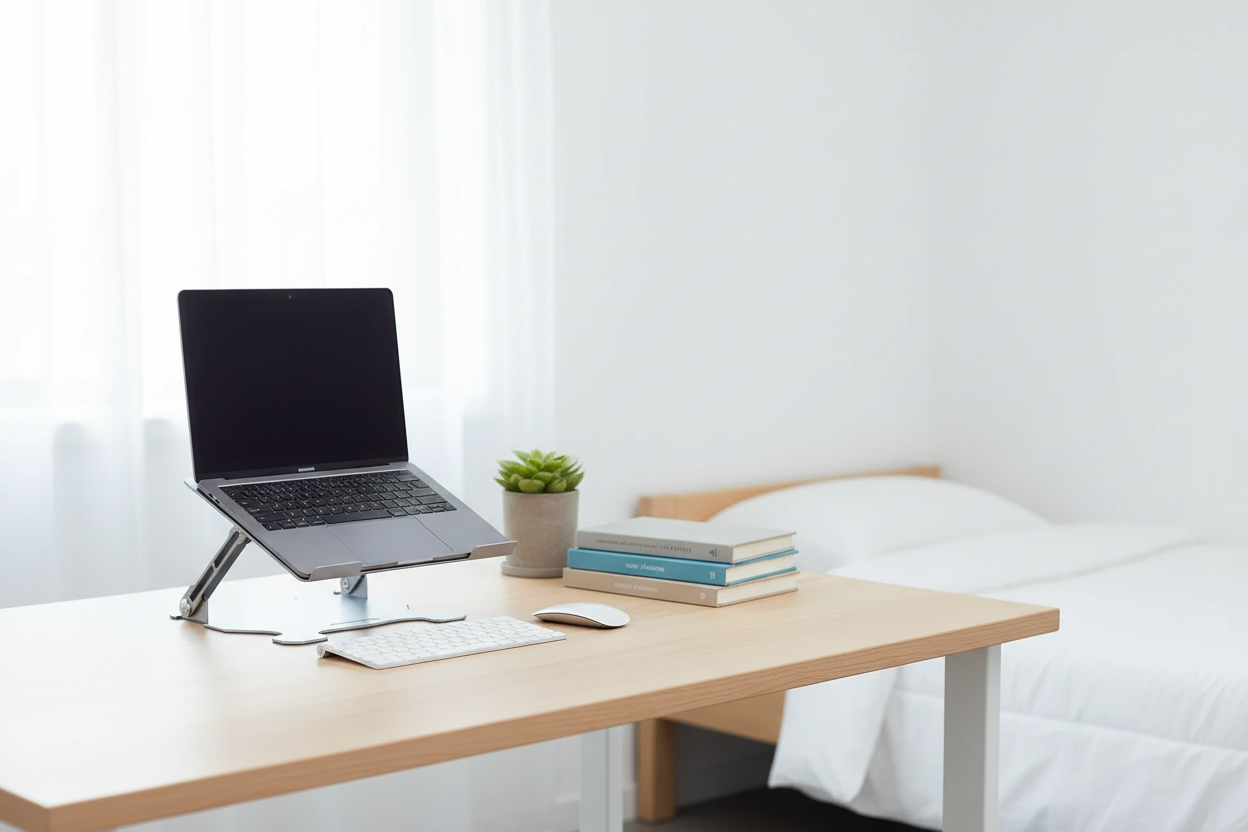
Let's be honest — most dorm rooms aren't exactly designed with your spine in mind. You've got a twin XL bed, a desk that's roughly the size of a cutting board, and a laptop you've been hunching over since freshman orientation. By midterms, your neck hurts, your shoulders are tight, and you're Googling "why does my back hurt at 19."
Sound familiar? You're not alone. And the good news is, you don't need to gut-renovate your dorm or spend thousands on a Herman Miller chair to fix it. A few smart, affordable upgrades can completely transform how you feel after a long study session.
This guide walks you through exactly what to buy, why it matters, and how to set it all up — even in the tightest dorm room on campus.
The Posture Crisis Nobody Talks About at Orientation
Here's a stat that should make you sit up straighter right now: when you tilt your head forward just 15 degrees to look down at a laptop screen, the effective weight on your cervical spine jumps from about 12 lbs (the weight of your head) to roughly 27 lbs. At 45 degrees of forward tilt — which is pretty much what you're doing when your laptop is flat on a desk — that load climbs to 49 lbs.
That's nearly 50 pounds of pressure on your neck. For hours at a time. Every single day.
Researchers call this "tech neck," and it's become one of the most common musculoskeletal complaints among college students. Symptoms include chronic neck stiffness, upper back tension, headaches, and in more serious cases, early-onset disc degeneration. The American Chiropractic Association has flagged it as a growing epidemic among young adults — and the culprit is almost always the same: a laptop sitting flat on a desk while you hunch forward to see the screen.
The fix isn't complicated. You need to get your screen up to eye level. That's it. Everything else in this guide flows from that one principle.
Why Dorm Ergonomics Are Uniquely Challenging
Fixing your home office setup is one thing. Fixing a dorm room setup is a whole different puzzle. Here's what you're working with:
- Limited desk space. Most dorm desks are 24–30 inches wide. That's not a lot of real estate when you factor in a laptop, textbooks, a water bottle, and whatever snacks you're stress-eating during finals.
- Strict furniture rules. Many universities prohibit drilling into walls or permanently modifying furniture. That rules out wall-mounted monitors and most traditional desk modifications.
- Shared spaces. If you have a roommate, you can't exactly take over the entire room with a standing desk and a dual-monitor rig.
- Budget constraints. You're a college student. Spending $1,500 on an ergonomic workstation isn't happening.
- Portability needs. You'll move at the end of every semester. Everything you buy needs to pack up and travel.
The good news: all of these constraints are solvable. You just need to shop smart.
The Foundation: Get Your Laptop Off the Desk Surface
The single most impactful thing you can do for your posture is elevate your laptop screen to eye level. This one change reduces cervical spine load, opens up your chest, and naturally pulls your shoulders back into a healthier position.
For most college students, a quality laptop stand is the best starting point — it's affordable, portable, and doesn't require any desk modifications.
Rackora Ergo Laptop Stand Elite Edition — $79.99

This is the one we recommend for most students, and here's why: at $79.99, it hits the sweet spot between price and performance. It's built from premium aluminum alloy (not the flimsy plastic you'll find on cheaper stands), folds completely flat so it fits in your backpack, and raises your screen to a proper eye-level position.
The Elite Edition supports laptops from 10 to 17 inches — so whether you're rocking a 13-inch MacBook Air or a 15-inch Dell XPS, you're covered. The anti-slip silicone pads keep your laptop locked in place, and the open-frame design actually improves airflow underneath your machine, which helps prevent the thermal throttling that slows down your laptop during long study sessions.
One thing students consistently mention: the build quality feels way more premium than the price suggests. It doesn't wobble, it doesn't creak, and it doesn't scratch your desk. For under $80, that's a genuinely hard combination to beat.
Important note: When you use a laptop stand, your laptop keyboard is no longer at a comfortable typing height. You'll want to pair it with an external keyboard and mouse — both of which you can find for $30–50 combined. This is standard ergonomic practice and makes a huge difference in wrist comfort.
Shop the Ergo Laptop Stand Elite — $79.99 →
Rackora 360° Rotating Laptop Stand with Cooling Fan — $129.99

If you're a CS major, a gamer, or anyone who runs resource-intensive software for hours at a time, the 360° Rotating Stand with Cooling Fan is worth the extra $50. The built-in cooling fan actively pulls heat away from your laptop's underside, which matters a lot when you're running Jupyter notebooks, rendering video, or gaming between study sessions.
The 360-degree rotating base is genuinely useful in a dorm context — you can spin your screen to show your roommate something without picking up the whole laptop. It also adjusts to multiple height settings, so you can dial in the exact eye-level position that works for your chair height.
At 1.1 kg, it's a bit heavier than the Elite Edition, but still very portable. If thermal management is a priority for you, this is the one to get.
Shop the 360° Cooling Stand — $129.99 →
Dealing with Space Constraints: The Clamp-On Monitor Arm Solution
Here's a scenario a lot of students run into: you've got a laptop stand, an external keyboard, and maybe a small external monitor you brought from home. Now your desk looks like a tech explosion and you have approximately zero space left for actual studying.
This is where a clamp-on monitor arm changes everything.
A monitor arm mounts to the edge of your desk (no drilling required — it uses a simple C-clamp) and holds your external monitor in mid-air. This frees up the entire desk surface underneath, giving you room to spread out notes, textbooks, or whatever else you need. It also lets you position the monitor at the exact height, angle, and distance that works for your body — something a fixed monitor stand can never do.
Rackora Full Motion Single Monitor Arm — $139.99

This arm handles monitors from 13 to 32 inches and supports up to 17.6 lbs — so it'll work with virtually any external monitor you're likely to use in a dorm. The gas spring mechanism is the key feature here: it means you can reposition your monitor with one hand, and it stays exactly where you put it. No sagging, no drift, no tightening screws every week.
The full range of motion — tilt, swivel, rotate, and extend — means you can go from a standard landscape setup to portrait mode for reading long documents, or swing the monitor out of the way entirely when you need the desk space for something else. The integrated cable management keeps your HDMI and power cables routed cleanly through the arm, so your desk doesn't look like a cable graveyard.
Installation takes about 10 minutes. The C-clamp attaches to the desk edge without any tools beyond what's included in the box, and it works on desk edges up to 3.9 inches thick — which covers pretty much every standard dorm desk out there.
Dorm regulation note: Because this arm uses a C-clamp (no drilling, no permanent modification), it's compliant with virtually every university's furniture policy. When you move out, you just unclamp it and pack it up.
Shop the Full Motion Monitor Arm — $139.99 →
The Mobile Cart: Your Secret Weapon for Flexible Studying
One of the underrated advantages of dorm life is that you're not locked into one spot. You can study at your desk, in the common room, in the hallway, wherever. A mobile rolling laptop cart lets you take your ergonomic setup with you — or at least move it around your room without picking everything up and starting over.
Rackora Small Mobile Rolling Standing Desk — $158.07

This rolling cart is specifically designed for small spaces — it has a compact footprint that won't dominate your dorm room, and the locking casters mean it stays put when you're working and rolls easily when you want to move it. The height-adjustable surface lets you switch between sitting and standing, which is one of the most effective ways to reduce the fatigue that builds up during long study sessions.
It works with laptops up to 15.6 inches and is compatible with MacBooks, Dell, HP, Lenovo, Asus, Surface, and Chromebook devices. The sturdy construction handles daily use without wobbling or flexing.
Where this really shines: if your dorm room has a weird layout where your desk is in an awkward spot (facing a wall, too close to your roommate's side, whatever), you can just roll this cart to wherever makes sense and set up there. It's also great for standing while you're on video calls or doing lighter work — a nice break from sitting all day.
Shop the Mobile Rolling Desk — $158.07 →
How to Set Up Your Dorm Ergonomic Workstation: Step by Step
Okay, you've got your gear. Here's how to actually set it up correctly so you get the full benefit.
Step 1: Set Your Chair Height First
Your feet should be flat on the floor (or on a footrest if your chair is too high). Your knees should be at roughly a 90-degree angle. Your hips should be slightly higher than your knees. If your dorm chair doesn't adjust, a firm cushion can help raise your seat height.
Step 2: Position Your Laptop Stand or Monitor
The top of your screen should be at or slightly below eye level. Most people set their screens too low — if you're looking down at all, raise it. With the Rackora Ergo Laptop Stand, adjust the height until the top of your screen is roughly level with your eyebrows when you're sitting up straight.
Step 3: Set Your Keyboard and Mouse Distance
Your external keyboard should be close enough that your elbows are at roughly 90 degrees and your wrists are straight (not bent up or down). Your mouse should be right next to the keyboard at the same height. If your desk is too high for this, a keyboard tray can help — but most dorm desks are at a reasonable height for most people.
Step 4: Check Your Monitor Distance
If you're using an external monitor on the Rackora Monitor Arm, position it about an arm's length away from your face (roughly 20–28 inches). Too close causes eye strain; too far causes you to lean forward.
Step 5: Manage Your Cables
Use the integrated cable management on your monitor arm and laptop stand to route cables cleanly. A tidy desk isn't just aesthetic — it reduces the mental clutter that makes it harder to focus.
Step 6: Take Breaks
Even a perfect ergonomic setup doesn't eliminate the need for movement breaks. The 20-20-20 rule is a good starting point: every 20 minutes, look at something 20 feet away for 20 seconds. Stand up and stretch for 2–3 minutes every hour. Your body is designed to move — even the best chair and desk setup can't fully compensate for sitting still for 6 hours straight.
Budget Breakdown: What to Buy First
If you're working with a limited budget (and who isn't in college), here's how to prioritize:
Under $100 — Start here: The Rackora Ergo Laptop Stand Elite Edition ($79.99) plus a budget external keyboard and mouse ($30–50 combined) gives you the biggest ergonomic improvement for the least money. This setup alone will dramatically reduce neck strain.
$100–$200 — Level up: Add the Rackora Full Motion Monitor Arm ($139.99) if you have or plan to get an external monitor. This frees up desk space and gives you much more flexibility in screen positioning.
$200+ — Full setup: The Rackora Mobile Rolling Desk ($158.07) rounds out a complete ergonomic workstation that you can use anywhere in your dorm — or take with you when you move.
You don't have to buy everything at once. Start with the laptop stand, see how much better you feel, and build from there.
What About Standing Desks for Dorms?
Standing desks are great — but most full-size electric standing desks are too large and too expensive for a typical dorm room. The Rackora 40" x 24" Electric Standing Desk ($599.99) is an excellent option if you're setting up an apartment or off-campus housing where you have more space and plan to stay for a while. It features three programmable height memory settings, whisper-quiet operation under 50 decibels, and a weight capacity that handles all your gear with ease.
For a traditional dorm room, though, the mobile rolling cart is a more practical choice — it gives you the sit-stand flexibility without the footprint or the price tag.
Long-Term Benefits: Why This Investment Pays Off
Here's the thing about ergonomics that most people don't think about until it's too late: the damage from bad posture is cumulative. You don't feel it after one study session. You feel it after six months of hunching over a laptop for 6–8 hours a day.
By the time you're a junior or senior, students who ignored their posture in freshman year are dealing with chronic neck pain, tension headaches, and in some cases, early signs of disc problems that require physical therapy. Students who set up their workspace correctly from the start? They're just... fine. They study longer, focus better, and don't spend their weekends recovering from a week of sitting wrong.
The gear in this guide — a laptop stand, a monitor arm, a mobile cart — costs less than one month of physical therapy sessions. It's not a luxury. It's preventive maintenance for your body.

Frequently Asked Questions
Q: Do I really need an external keyboard if I use a laptop stand?
Yes — and this is non-negotiable from an ergonomics standpoint. When your laptop is elevated to eye level on a stand, the built-in keyboard is too high to type on comfortably. You'll end up raising your arms and shrugging your shoulders, which creates a different kind of strain. An external keyboard (even a $25 one) solves this completely. Pair it with an external mouse and you're set.
Q: Will a clamp-on monitor arm damage my dorm desk?
The Rackora Full Motion Monitor Arm uses a padded C-clamp that distributes pressure evenly across the desk edge. It won't scratch or dent a standard desk surface. That said, if your dorm desk has a very thin or fragile edge, use the included rubber padding and don't overtighten the clamp. When in doubt, check with your RA — but in our experience, clamp-on arms are universally accepted because they leave no permanent marks.
Q: What's the difference between a laptop stand and a monitor arm?
A laptop stand elevates your laptop itself — you're still using your laptop's built-in screen. A monitor arm holds a separate external monitor. Many students use both: a laptop stand for the laptop (which becomes a secondary screen or is closed entirely) and a monitor arm for a larger external display. This dual-screen setup is especially popular with students who do a lot of writing, coding, or research.
Q: My dorm has a loft bed and my desk is underneath it. Does that change anything?
Loft bed setups can be tricky because the overhead clearance is limited. In this case, a monitor arm is actually more useful than a laptop stand, because you can position the monitor at exactly the right height within the available space. The Rackora Monitor Arm's full range of motion makes it easy to dial in the position even in tight vertical clearances.
Q: How do I know if my screen is at the right height?
Sit up straight in your chair with your eyes looking straight ahead. The top of your screen should be at or just slightly below your eye level. If you're looking up at the screen, it's too high. If you're looking down, it's too low. Most people are surprised by how high "correct" actually is — it's usually several inches higher than where they naturally place their laptop.
Q: Can I use a laptop stand on a bed or couch?
You can, but it's not ideal for ergonomics. Beds and couches don't provide the back support you need for long sessions, and the soft surface makes it hard to maintain a stable position. For occasional use (watching a movie, quick email check), it's fine. For studying, stick to a desk and chair setup.
Q: Is the Rackora laptop stand compatible with my MacBook?
Yes — the Rackora Ergo Laptop Stand Elite Edition is compatible with MacBook Pro 13", 14", 15", and 16", as well as MacBook Air 13" and 15". It also works with Dell, HP, Lenovo, Asus, Microsoft Surface, and most other laptops up to 17 inches.
Q: How much does a complete ergonomic dorm setup cost?
You can build a solid ergonomic setup for $150–$200 total: the Rackora Ergo Laptop Stand Elite Edition ($79.99) plus a budget external keyboard and mouse ($30–50) gets you most of the way there. Adding the Full Motion Monitor Arm ($139.99) if you have an external monitor brings the total to around $250–$270. That's a one-time investment that lasts through all four years of college and beyond.
Q: Do I need a special desk to use a monitor arm?
No — the Rackora Monitor Arm works with any desk that has an edge between 0.4" and 3.9" thick, which covers virtually every standard desk. It uses a C-clamp that attaches without drilling or permanent modification, so it's compatible with dorm furniture policies at most universities.
Q: What if I already have back or neck pain from bad posture?
Fixing your workstation setup will help prevent further damage and reduce ongoing strain, but if you're already experiencing significant pain, it's worth seeing a doctor or physical therapist. They can assess whether there's any structural issue that needs treatment and give you specific exercises to address the muscle imbalances that develop from prolonged poor posture. Don't just push through chronic pain — address it.
College is hard enough without adding chronic neck pain to the mix. The good news is that fixing your dorm desk setup is one of the most straightforward, affordable upgrades you can make — and the benefits compound over time.
Start with the Rackora Ergo Laptop Stand Elite Edition to get your screen at eye level. Add the Full Motion Monitor Arm if you're using an external display. And if you want maximum flexibility in your space, the Mobile Rolling Desk gives you a portable, height-adjustable workstation you can use anywhere.
Your future self — the one who makes it through four years of college without a chiropractor bill — will thank you.
