Erasing Cable Chaos: A Beginner's Guide to Desk Cable Management
Quick Answer: Tangled desk cables are a safety hazard and a focus killer. The fastest fix? Route cables through a monitor arm's built-in clips, drop them into an under-desk cable tray, and secure the rest with reusable velcro ties. A clean desk isn't just prettier — it's measurably safer and helps you stay in the zone longer. Rackora's monitor arms and ergonomic desk systems are built with integrated cable management so the hard part is already done for you.
Why Does Desk Cable Management Even Matter?
Picture this: it's 9 AM, you've got a deadline, you reach for your coffee — and you knock your monitor sideways because a rogue HDMI cable was looped around the base. Or worse, you're vacuuming on a Sunday and the vacuum snags a power strip cable, yanking your entire setup off the desk. Sound familiar?
Cable chaos isn't just ugly. According to the U.S. Consumer Product Safety Commission, electrical cord-related accidents send tens of thousands of Americans to the emergency room every year. Tripping hazards, overheating cables bundled too tightly, and dust buildup around tangled wires are all real risks hiding in plain sight on your desk.
Beyond safety, there's the psychological toll. Research in environmental psychology consistently shows that visual clutter — yes, including cable spaghetti — increases cortisol levels and reduces your ability to focus. Your brain is constantly processing that mess in the background, even when you think you're ignoring it.
The good news? You don't need to be a tech wizard or spend a weekend on this. With the right gear and a simple system, you can go from cable chaos to clean desk in an afternoon.
What Are the Most Common Desk Cable Problems (And What Causes Them)?
Before you fix the problem, it helps to understand why it happens. Most cable chaos comes down to three root causes:
1. Too many devices, not enough routing. The average home office now has a monitor (or two), a laptop, a webcam, a USB hub, speakers, a desk lamp, a phone charger, and maybe a gaming controller or drawing tablet. That's easily 8–12 cables competing for the same desk real estate.
2. Cables that are too long. Most cables ship in a one-size-fits-all length — usually way longer than you need. That extra slack pools on the floor or drapes over the desk edge in loops that collect dust and create trip hazards.
3. No system at all. Without a deliberate routing plan, cables take the path of least resistance — which usually means straight down to the floor in a tangled heap.
The solution isn't buying a bag of zip ties and hoping for the best. It's building a layered system: route cables at the source, manage them along the path, and anchor them at the destination.
How Do Monitor Arms Help With Cable Management?
Here's a scenario that probably hits close to home: you finally got a second monitor to boost your productivity, but now you have two HDMI cables, two power cables, and a USB cable all snaking across your desk in different directions. Every time you adjust the monitor angle, the cables pull taut and drag everything with them.

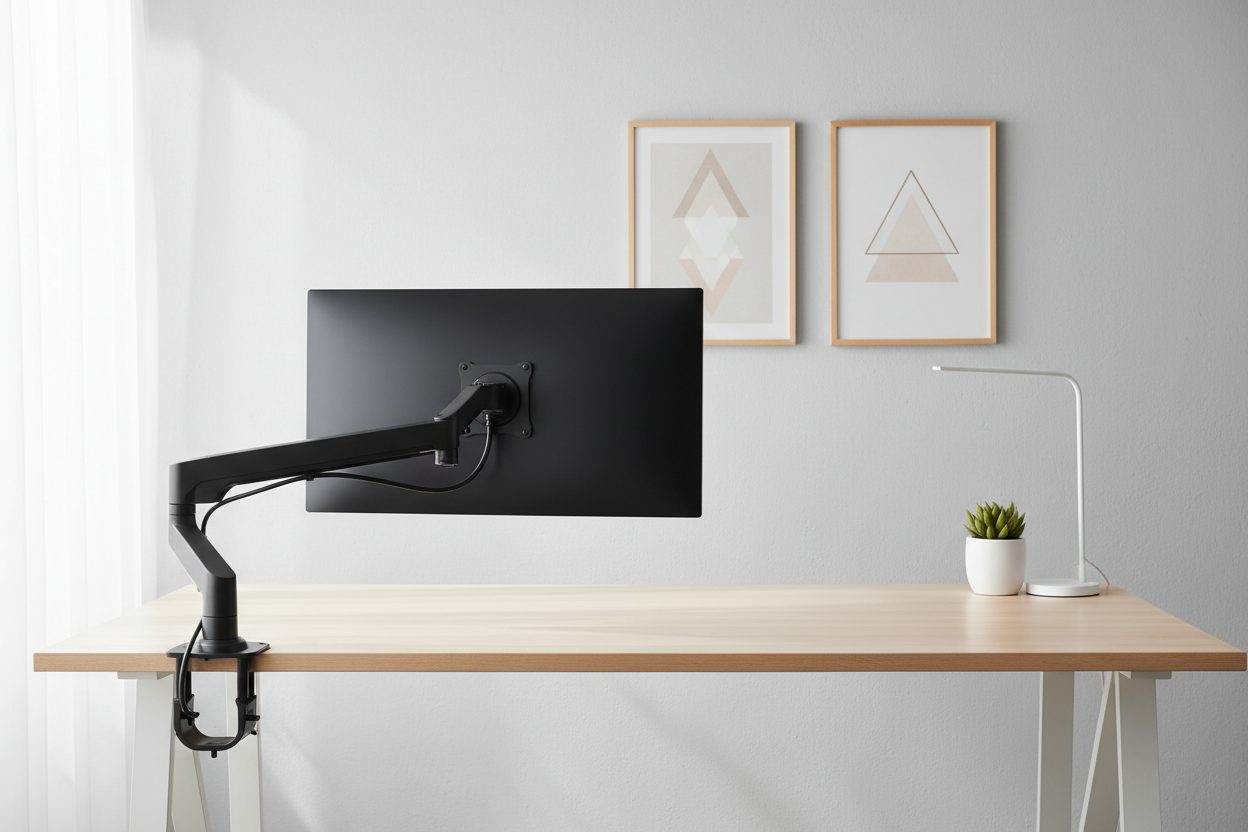
A quality monitor arm solves this at the source. The best arms — like Rackora's gas-spring monitor mounts — feature integrated cable clips and routing channels built directly into the arm. Your cables travel inside or along the arm itself, completely hidden from view. When you tilt, swivel, or raise the monitor, the cables move with it cleanly, with no drag and no tangles.

Which Rackora Monitor Arm Is Right for Your Setup?
Rackora offers two core monitor arm options depending on how many screens you're running:
-
Full Motion Single Monitor Arm — $139.99
Fits 13–32" screens. Gas-spring counterbalance means you can reposition your monitor with one finger. Built-in cable management clips keep your HDMI and USB cables routed cleanly along the arm. VESA compatible. Perfect for single-monitor home office setups. -
Dual Monitor Gas Spring Mount — $131.99
Handles two 13–32" screens up to 17.6 lbs each. Independent arm articulation so you can angle each screen exactly where you need it. Cable routing channels on both arms keep your dual-monitor cable situation from becoming a dual-monitor cable disaster.

Both arms clamp directly to your desk — no drilling required — and free up the desk surface that your old monitor stand was hogging. That reclaimed space is exactly where your cable tray, USB hub, or notebook goes next.
What Is an Under-Desk Cable Tray and Do You Actually Need One?
You've routed your monitor cables through the arm. Great. But what about the power strip? The laptop charger brick? The USB hub? Those still need somewhere to live.
This is where an under-desk cable tray earns its keep. Think of it as a shelf for your cables — mounted to the underside of your desk, completely out of sight. Your power strip sits in the tray, your cable bricks rest there, and everything drops down from the tray to the wall outlet in one clean, managed bundle instead of a sprawling mess across the floor.
A good under-desk tray setup typically includes:
- A metal mesh or solid tray that mounts with screws or clamps (no permanent damage to your desk)
- A cable spine or sleeve that bundles the drop from tray to floor into a single, clean column
- Reusable velcro cable ties to group cables inside the tray by type
The result: you look under your desk and see one tidy bundle dropping to the floor. Not 11 individual cables going in 11 different directions.
How Does a Standing Desk Change Your Cable Management Strategy?
Standing desks introduce a unique cable challenge: the desk moves. Every time you raise or lower the surface, your cables need enough slack to travel with it — but not so much slack that they pool on the floor when the desk is at sitting height.
If you've ever watched your monitor cable go taut as you raise your standing desk, you know the anxiety of wondering whether something's about to get yanked out of the port. And if you've ever seen the cable accordion-fold on the floor when the desk comes down, you know that's not a great look either.
The fix is a two-part approach:
- Use a monitor arm. By routing your monitor cables through the arm and then down the desk leg (using adhesive cable clips), you give the cables a guided path that accommodates the desk's full range of motion.
- Size your cables correctly. Measure the distance from your desk at its highest point to the floor, add 12 inches of slack, and use cables that length. Anything longer creates floor puddles; anything shorter creates tension.

Rackora's 40" × 24" Electric Height Adjustable Standing Desk ($599.99) is engineered with a quiet dual-motor lift system and a desk frame designed to work with standard cable management accessories. The clean, minimalist frame gives you natural anchor points for cable clips along the legs, so your cable routing stays organized through the full sit-to-stand range of motion.
Cable Management Tools Compared: What Actually Works?
The market is flooded with cable management products. Some are genuinely useful; others are just colorful plastic that ends up in a drawer. Here's an honest breakdown:
| Tool | Best For | Limitations | Difficulty |
|---|---|---|---|
| Monitor arm cable clips | Monitor & peripheral cables at the source | Only works with monitor arm setups | Easy |
| Under-desk cable tray | Power strips, bricks, bulk cable storage | Requires mounting (screws or clamps) | Easy–Medium |
| Reusable velcro ties | Bundling cables anywhere | Doesn't hide cables, just groups them | Very Easy |
| Cable sleeves / braided wrap | Bundling multiple cables into one visual line | Hard to add/remove cables later | Medium |
| Adhesive cable clips | Routing cables along desk legs or walls | Adhesive can fail on textured surfaces | Easy |
| Cable spine (floor drop) | Managing the vertical drop from desk to floor | Needs to be sized to desk height | Easy |
| Desk grommet / cable hole | Routing cables through the desk surface | Requires drilling if not pre-installed | Medium–Hard |
Pro tip: The most effective setups use 3–4 of these tools in combination, not just one. Start with a monitor arm for source routing, add an under-desk tray for bulk management, use velcro ties to group cables inside the tray, and finish with a cable spine for the floor drop.
How Do You Set Up Cable Management on a Laptop Stand?
Not everyone is running a full desktop tower. If you're working from a laptop — even a powerful one — you still have cable chaos potential: the laptop charger, an external monitor cable, a USB hub, maybe a docking station. That's 4–6 cables minimum, all originating from one small device.
A laptop stand is your first line of defense. By elevating your laptop to eye level, you naturally create space underneath for a USB hub or docking station, which consolidates multiple cables into one connection point. Instead of 5 cables going into your laptop, you have 1 USB-C cable going to the dock, and the dock handles everything else.

The Rackora Ergo Laptop Stand Elite Edition ($79.99) is built from aerospace-grade aluminum with a non-slip silicone base. The open-frame design allows airflow underneath your laptop (critical for thermal management during long sessions) and gives you a natural cable routing path — your laptop charger and USB-C cable drop cleanly from the back of the stand rather than sprawling across the desk surface.
Step-by-Step: How to Cable Manage Your Desk in One Afternoon
Ready to actually do this? Here's the exact process, in order:
Step 1: Unplug everything and start from zero. Yes, everything. Lay all your cables out on the desk. This is the only way to see what you're actually working with and identify cables you don't even use anymore.
Step 2: Identify and remove dead cables. That VGA cable from 2019? Gone. The USB-A cable for a device you no longer own? Donate it. Reducing the number of cables is the most effective cable management technique of all.
Step 3: Map your cable paths before you plug anything back in. Decide where each cable will travel: from the device, along what path, to what destination. Sketch it out if it helps. The goal is to have cables traveling in parallel, bundled groups — not crossing each other at random angles.
Step 4: Install your monitor arm first. Mount it, route your monitor cables through the arm's clips, and position the arm where you want it. This is your anchor point for the whole setup.
Step 5: Mount your under-desk tray. Position it centered under your desk, close to where your cables will drop. Install your power strip in the tray.
Step 6: Route cables from devices to tray. Use adhesive clips along the desk edge or underside to guide cables from your devices down to the tray. Bundle cables traveling the same direction with velcro ties.
Step 7: Manage the floor drop. From the tray to the wall outlet, use a cable spine or sleeve to bundle everything into one clean vertical drop. Secure it to the desk leg with a clip or two.
Step 8: Label your cables. Use a label maker or even just masking tape and a marker. When you need to unplug something six months from now, you'll thank yourself.
What Are the Best Practices for Keeping Your Desk Cables Organized Long-Term?
Getting organized is one thing. Staying organized is another. Here's what separates people who maintain a clean desk from those who slide back into cable chaos within a month:
- Use reusable velcro ties, not zip ties. Zip ties are permanent. Every time you add a device or swap a cable, you're cutting ties and starting over. Velcro ties take 5 seconds to open and re-close.
- Buy the right cable length the first time. Measure before you order. A 3-foot cable that's exactly the right length is infinitely better than a 6-foot cable with 3 feet of slack to manage.
- Do a quarterly cable audit. Every 3 months, spend 10 minutes checking whether any cables have come loose from their clips, whether you have new devices that need to be integrated into the system, and whether any cables can be removed.
- Wireless where it makes sense. A wireless keyboard and mouse eliminate 2 cables immediately. A wireless charger for your phone eliminates another. Don't go wireless for everything (wired peripherals still have latency and reliability advantages for many users), but be strategic.
How Does a Clean Desk Setup Actually Affect Your Productivity?
This isn't just aesthetic philosophy. A 2011 study published in the Journal of Neuroscience found that physical clutter in your environment competes for your attention and reduces your brain's ability to process information. A Princeton University study found that an organized workspace led to measurably better focus and task completion rates.
When your cables are managed, you stop unconsciously tracking them. You stop worrying about tripping on them, about whether that one cable is getting pinched, about the dust building up in the tangle. That freed-up mental bandwidth goes back to your actual work.
And there's a compounding effect: a clean desk makes you more likely to keep it clean. The psychological principle of "broken windows" applies here — one messy cable leads to another, but one clean surface invites you to keep it that way.

Rackora Products That Make Cable Management Easier
Every product in this list was chosen because it either directly manages cables or creates the structural conditions that make cable management dramatically easier:
| Product | Price | Cable Management Benefit |
|---|---|---|
| Full Motion Single Monitor Arm | $139.99 | Built-in cable clips route monitor cables through the arm |
| Dual Monitor Gas Spring Mount | $131.99 | Dual-arm cable routing for two-monitor setups |
| 40" × 24" Electric Standing Desk | $599.99 | Clean frame with natural cable anchor points along legs |
| Ergo Laptop Stand Elite Edition | $79.99 | Open-frame design creates clean cable drop path |
Frequently Asked Questions About Desk Cable Management
What is the easiest way to start managing desk cables?
Start with velcro cable ties — they cost almost nothing, require zero installation, and immediately reduce visual chaos. Then add a monitor arm with built-in cable clips as your next upgrade. Those two steps alone will transform most desks.
Do I need to drill holes in my desk for cable management?
No. Most modern cable management solutions — including under-desk trays, monitor arm clamps, and adhesive cable clips — are completely tool-free or use simple clamps. Drilling is only necessary if you want a built-in desk grommet, which is optional.
How do I manage cables on a standing desk that moves up and down?
Use a monitor arm to route monitor cables through the arm itself, then run cables down the desk leg using adhesive clips. Leave enough slack (measure at the desk's highest position, add 12 inches) so cables travel freely through the full range of motion without going taut.
What's the difference between a cable sleeve and a cable tray?
A cable sleeve bundles multiple cables into one visual tube — great for the floor drop from desk to wall. A cable tray mounts under your desk and holds your power strip and cable bricks out of sight. They serve different purposes and work best used together.
Can a monitor arm really help with cable management?
Yes — it's one of the most impactful single upgrades you can make. A monitor arm with integrated cable clips routes your monitor's HDMI, DisplayPort, and USB cables through the arm itself, eliminating the cables that previously draped across your desk or dangled from the back of your monitor.
How many cables does the average home office desk have?
Most home office setups have between 8 and 14 cables: monitor power, monitor video, laptop charger, USB hub, keyboard, mouse receiver, webcam, desk lamp, phone charger, speaker cables, and possibly a microphone or audio interface. A structured cable management system can make all of these effectively invisible.
Is wireless gear better than wired for cable management?
Wireless keyboards and mice eliminate 2 cables with zero performance trade-off for most users. However, wired connections are still preferred for monitors (no latency), audio interfaces (reliability), and high-speed data transfer. Be strategic: go wireless where it makes sense, stay wired where performance matters.
How do I stop cables from falling off the back of my desk?
Use adhesive cable clips or a cable holder with a weighted base along the back edge of your desk. These hold cable ends in place so your charging cable is always within reach instead of sliding off the back every time you unplug your phone.
What's the best way to label desk cables?
Fold a small piece of masking tape around the cable near the plug end and write the device name with a marker. For a cleaner look, use a label maker with heat-shrink labels. Label both ends of every cable — the plug and the device end — so you can identify cables from either direction.
How often should I reorganize my desk cables?
Do a quick check every time you add or remove a device. Do a full audit every 3 months: check that all clips are secure, remove any cables you're no longer using, and re-bundle anything that's come loose. 10 minutes quarterly keeps the system running cleanly.
Organize Your Setup: Shop Cable Management
You've read the guide. You know the system. Now it's time to actually build it.
The fastest path to a clean, organized desk starts with a monitor arm that routes cables at the source. From there, an under-desk tray handles the bulk storage, and a few velcro ties keep everything grouped and tidy. It's a one-afternoon project that pays dividends every single day you sit down to work.
Rackora's ergonomic desk gear is designed from the ground up to make cable management easier — not an afterthought. Every monitor arm ships with integrated cable clips. Every standing desk frame is engineered with clean routing in mind.
And when you shop Rackora, you get:
- ✅ Free shipping from US warehouses — most orders arrive in 3–7 business days
- ✅ 30-day hassle-free returns — if it doesn't work for your setup, send it back, no questions asked
- ✅ 15% off your first order when you subscribe to our email list
- ✅ Use code DE30 for an extra 30% off during our current sale
Shop Single Monitor Arm — $139.99 Shop Dual Monitor Mount — $131.99 Shop Standing Desk — $599.99
Your future self — the one sitting at a clean, organized, distraction-free desk — will thank you.
