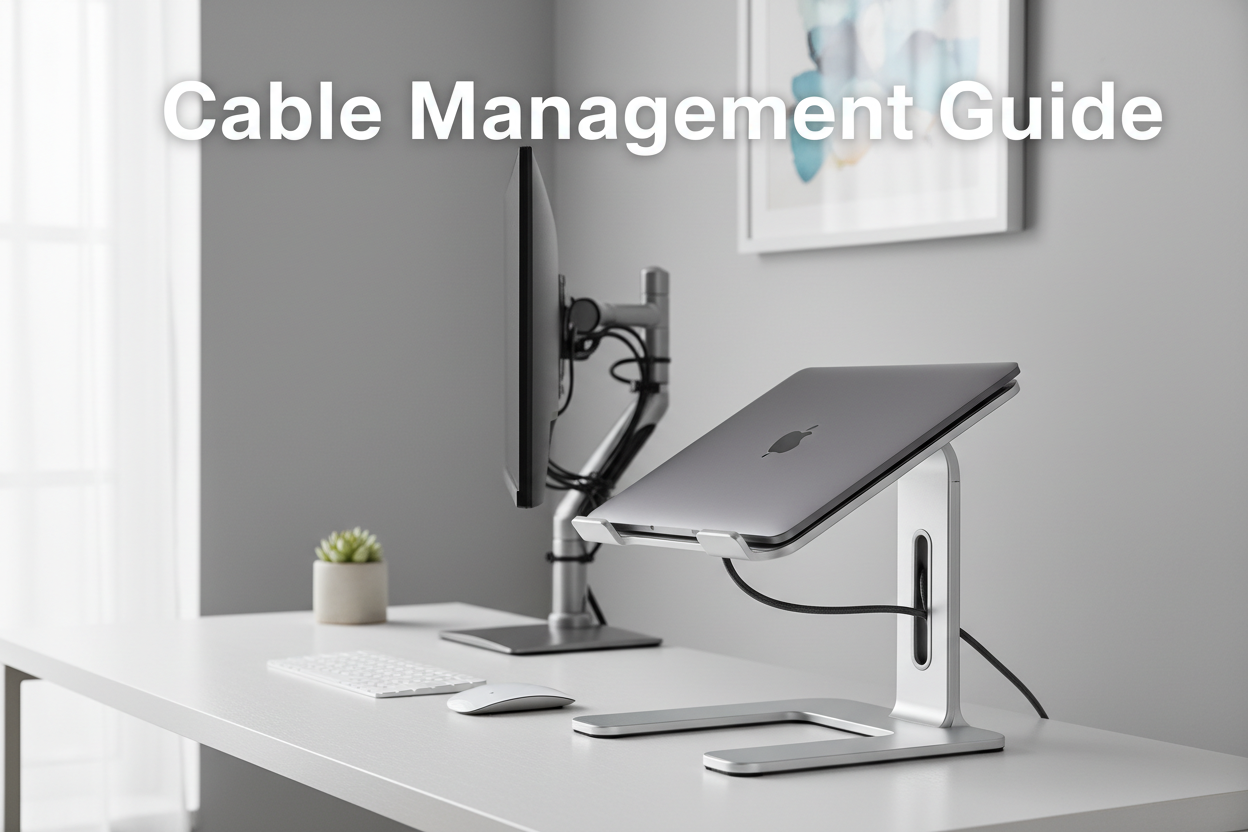
You've spent hours perfecting your workspace. The desk is positioned just right, your monitor sits at the perfect height, and everything looks clean and professional. Then you glance down, and there it is—a tangled mess of cables that looks like a bowl of electronic spaghetti.
Sound familiar?
Cable chaos isn't just an eyesore. It's a productivity killer, a dust magnet, and honestly, kind of embarrassing when you're on a video call and someone catches a glimpse of the disaster zone under your desk.
But here's the good news: fixing your cable situation doesn't require an engineering degree or a complete workspace overhaul. With the right approach and a few smart tools, you can transform that cable nightmare into a clean, organized setup that actually makes you feel good about your workspace.
Let's dive into everything you need to know about desk cable management—from why it matters to exactly how to do it right.
Why Cable Management Actually Matters (Beyond Just Looking Pretty)
Sure, a clean desk looks better. But cable management goes way deeper than aesthetics.
The Real Impact of Cable Clutter
When cables are everywhere, your brain registers it as visual noise. Studies on workspace organization show that cluttered environments increase cognitive load—basically, your brain has to work harder to focus on what actually matters. Every time you sit down at a messy desk, part of your mental energy goes toward processing all that chaos instead of your actual work.
Then there's the practical stuff. Tangled cables are harder to trace when something stops working. Need to unplug your laptop charger? Good luck figuring out which cable is which in that rat's nest. And don't even get me started on the dust situation—cables lying on the floor collect dust like nobody's business, which isn't great if you have allergies or just prefer breathing clean air.
Safety Isn't Sexy, But It's Important
Loose cables on the floor are tripping hazards. Period. If you've got kids, pets, or just a tendency to walk around your home office without looking down, those cables can cause real problems. Plus, cables that are constantly being stepped on or rolled over by your chair wear out faster, which means you're replacing them more often.
And here's something most people don't think about: proper cable management can actually extend the life of your electronics. When cables are bent at sharp angles or constantly under tension, the wires inside can break down over time. Keeping them organized and properly routed means less stress on the cables themselves.
Understanding Your Cable Ecosystem
Before you start zip-tying everything in sight, take a minute to understand what you're working with.
The Main Cable Categories in Your Workspace
Most home offices have three types of cables:
Power cables are the thick ones—your monitor power cord, laptop charger, desk lamp, phone charger, and anything else that plugs into the wall. These are usually the bulkiest and least flexible.
Data cables include your HDMI or DisplayPort cables connecting your monitor, USB cables for peripherals, ethernet cables if you're hardwired, and charging cables for your devices. These tend to be thinner and more flexible than power cables.
Peripheral cables connect your keyboard, mouse, webcam, speakers, and any other accessories. Depending on your setup, you might have a lot of these or just a few.
Taking Inventory
Here's a simple exercise: count your cables. Seriously. Most people are shocked when they realize they have 10, 15, or even 20 cables running to and from their desk. Once you know what you're dealing with, you can plan your cable management strategy accordingly.
Also, think about which cables you actually need. That old USB cable from a device you don't even own anymore? Toss it. The duplicate phone charger you keep "just in case"? Pick one and put the other somewhere else. Reducing cable count is the easiest form of cable management.
The Cable Management Toolkit: What You Actually Need
You don't need to buy every cable management gadget on Amazon. Here's what actually works.
Cable Clips and Holders
These little guys are the workhorses of cable management. Adhesive cable clips stick to the edge of your desk or the back of your monitor and hold individual cables in place. They're perfect for keeping your charging cables from sliding off the desk when you unplug your phone.
The key is placement. Put clips where cables naturally want to go, not where you think they should go. Work with gravity and cable stiffness, not against them.
Cable Sleeves and Wraps
When you've got multiple cables running the same route—like from your desk to your power strip—cable sleeves bundle them together into one clean line. They're usually made of neoprene or fabric and zip or wrap around your cables.
The result? Instead of five separate cables snaking across your floor, you've got one tidy bundle. It's not invisible, but it's way less chaotic.
Under-Desk Cable Trays
This is where cable management gets serious. A cable tray mounts under your desk and creates a dedicated highway for your cables. Power strips go in the tray, cables route through it, and suddenly your floor is clear.
If you're using a standing desk, cable trays are especially important because they keep cables organized as your desk moves up and down. Nothing worse than raising your desk and having cables pull tight or get caught.
Velcro Straps vs. Zip Ties
Here's a hot take: skip the zip ties. Yeah, they're cheap and they work, but they're also permanent (unless you cut them) and can damage cables if you tighten them too much.
Velcro straps are reusable, adjustable, and gentle on cables. When you need to add or remove a cable from a bundle, you just unwrap the velcro instead of cutting and replacing a zip tie. Trust me on this one.
Step-by-Step: Building Your Cable Management System
Alright, let's get practical. Here's how to actually organize your cables from start to finish.
Step 1: Unplug Everything (Yes, Really)
I know it sounds extreme, but starting from scratch is the only way to do this right. Take a photo of your current setup first so you remember what plugs in where, then unplug everything.
This is also a great time to clean your desk, wipe down your monitor, and get rid of any dust bunnies that have been living in your cable jungle.
Step 2: Plan Your Cable Routes
Think about the shortest, cleanest path for each cable. Power cables should route to your power strip (which should be mounted under your desk or secured to your cable tray). Data cables should run as directly as possible to their destinations.
For monitor arms and adjustable monitor mounts ($139.99), route cables through the arm itself if possible. Most quality monitor arms have built-in cable management channels for exactly this purpose.

Step 3: Install Your Infrastructure
Mount your cable tray under your desk. Stick your cable clips along the desk edge and monitor back. Set up your power strip in an accessible but hidden location.
Pro tip: if you're using an electric standing desk ($599.99), make sure your power strip is mounted to the desk itself, not the wall. Otherwise, your cables will pull tight when you adjust the desk height.

Step 4: Route and Secure Your Cables
Start with power cables since they're the least flexible. Run them through your cable tray or along your planned route, securing them with velcro straps every 12-18 inches.
Next, add your data cables. Keep them separate from power cables when possible to reduce electromagnetic interference (it's rare, but it can happen with long cable runs).
Finally, add your peripheral cables. These are usually the most visible, so take extra care to route them cleanly.
Step 5: Label Everything
Future you will thank present you for this. Use a label maker or even just masking tape and a marker to label both ends of each cable. When something stops working six months from now, you'll know exactly which cable to check.
Step 6: Leave Some Slack
Don't pull cables tight. Leave a little slack at connection points so there's no tension on the ports. This is especially important for laptop connections since you'll be plugging and unplugging regularly.
For standing desks, leave enough slack that cables don't pull when the desk is at its highest position. Test the full range of motion before you finalize everything.
Advanced Cable Management Strategies
Once you've got the basics down, here are some next-level moves.
The Laptop Stand Solution
If you use a laptop as your main computer, a laptop stand ($79.99) does double duty: it improves your ergonomics and creates a natural cable management point. Route your charging cable, external monitor cable, and any other connections through the stand's base, and suddenly you've got a single connection point instead of cables everywhere.

Color Coding Your Cables
Buy cables in different colors or use colored velcro straps to create a visual system. Power cables in black, data cables in blue, peripheral cables in red—whatever makes sense to you. It sounds silly until you're troubleshooting a connection issue and can immediately identify the right cable.
The Wireless Upgrade
Sometimes the best cable management is no cables at all. Wireless keyboards, mice, and headphones eliminate several cables right off the bat. Just remember you'll need to charge them, so you're trading constant cables for occasional charging cables.
Desk Grommets for the Perfectionists
If your desk has a grommet hole (or you're willing to drill one), you can route cables through the desk surface itself. This creates the cleanest possible look since cables literally disappear into your desk and emerge exactly where you need them.
Common Cable Management Mistakes (And How to Avoid Them)
Let's talk about what not to do.
Mistake #1: Making It Too Permanent
Your workspace will change. You'll add new devices, upgrade your monitor, switch to a different keyboard. If you've zip-tied and super-glued everything into place, making changes becomes a nightmare. Keep your system flexible.
Mistake #2: Ignoring Cable Length
A 10-foot cable when you only need 3 feet means 7 feet of excess cable you have to manage. When possible, buy cables in the right length for your setup. Yes, it takes more planning, but the result is so much cleaner.
Mistake #3: Forgetting About Access
Don't make your cable management so elaborate that you can't easily unplug something when you need to. Your power strip should be accessible. Your most-used connections should be easy to reach. Form follows function.
Mistake #4: Mixing Power and Data Cables Too Closely
While it's rare in home office setups, running power and data cables parallel to each other for long distances can cause interference. Keep them separated when possible, or at least cross them at right angles rather than running them side by side.
Cable Management for Different Desk Setups
Not all desks are created equal. Here's how to adapt your approach.
Standing Desks
The challenge with standing desks ($489.38) is movement. Your cables need enough slack to accommodate the full range of motion without pulling tight or dragging on the floor.

Mount your power strip to the underside of the desk itself, not to a wall or the desk frame. Use a cable spine or sleeve that can flex as the desk moves. Test the full range of motion before you call it done.
Corner Desks
Corner desks are great for space but tricky for cables since you've got two edges to manage. The key is to pick one corner as your cable hub—usually the one closest to your power outlet—and route everything there.
Minimalist Desks Without Storage
If your desk is just a slab of wood with legs, you don't have built-in cable management options. This is where under-desk cable trays become essential. Mount a tray that runs the length of your desk, and use it as your cable highway.
Gaming Setups
Gaming setups tend to have more cables than typical workspaces—multiple monitors, RGB lighting, gaming peripherals, speakers, microphones, the list goes on. The same principles apply, but you'll need more cable clips, longer cable sleeves, and probably a bigger cable tray.
Maintaining Your Cable Management System
You've done the work. Now keep it that way.
The Monthly Check-In
Once a month, take five minutes to check your cables. Are any coming loose? Has anything shifted? Did you add a new device and just throw the cable wherever? Quick maintenance prevents your system from degrading back into chaos.
When You Add New Devices
Don't just plug in the new cable and call it good. Take the time to integrate it into your existing system. Route it properly, secure it with velcro, label it. Treat every new cable as an opportunity to maintain your standards, not an excuse to let things slide.
The Annual Deep Clean
Once a year, unplug everything again and give your whole system a refresh. Dust out your cable tray, check for worn cables, reorganize anything that's gotten messy. Think of it as spring cleaning for your workspace.
Budget-Friendly Cable Management
You don't need to spend a fortune to get organized.
DIY Solutions That Actually Work
Binder clips attached to the edge of your desk work surprisingly well as cable holders. Toilet paper tubes can bundle cables (though they're not pretty). Velcro cable ties can be cut from a roll of velcro you buy at a craft store for a fraction of the cost of pre-cut ties.
Where to Invest vs. Where to Save
Spend money on a good under-desk cable tray and quality velcro straps. These are the foundation of your system. Save money on cable clips—the cheap ones work fine. Skip the fancy cable sleeves and use simple spiral wrap instead.
The Gradual Approach
You don't have to buy everything at once. Start with a cable tray and some velcro straps. Add clips as you need them. Build your system over time as you figure out what works for your specific setup.
Cable Management and Ergonomics
Here's something people don't talk about enough: cable management affects your ergonomics.
Cables Shouldn't Dictate Your Setup
If your monitor is positioned wrong because the cable isn't long enough, that's a problem. If your keyboard is at an awkward angle because you're trying to hide the cable, that's a problem. Your ergonomics should drive your setup, and your cable management should accommodate that—not the other way around.
The Standing Desk Connection
Proper cable management makes it easier to use your standing desk the way it's meant to be used. If you're worried about cables pulling or getting tangled every time you adjust the height, you're less likely to actually use the standing feature. Good cable management removes that friction.
Monitor Positioning Freedom
When your cables are properly managed, you can position your monitor exactly where it needs to be for optimal ergonomics. A dual monitor mount (starting at $99) gives you positioning flexibility, but only if your cables can move with it.
Troubleshooting Common Cable Issues
Even with great cable management, problems happen.
Cables Keep Falling Off the Desk
This is usually a weight issue. Heavy cables (like laptop chargers) want to slide off when unplugged. Solution: use weighted cable clips or route the cable through a clip that's further back on the desk so the weight is balanced.
Not Enough Outlets
Get a power strip with more outlets, or use a surge protector with widely-spaced outlets so bulky adapters don't block adjacent spots. Don't daisy-chain power strips—that's a fire hazard.
Cables Are Too Short
Extension cables exist for a reason. Just make sure you're using quality extensions, especially for data cables where cable quality affects performance.
Everything Looks Messy Despite Your Best Efforts
Sometimes the issue isn't your cable management—it's that you have too many cables. Consider consolidating devices, going wireless where possible, or using a docking station that reduces multiple cables to a single connection.
The Psychology of a Clean Workspace
Let's get a little philosophical for a minute.
Why Visual Order Matters
Your environment affects your mental state. A clean, organized workspace signals to your brain that this is a place where focused work happens. A messy, chaotic workspace signals... well, chaos.
This isn't just feel-good nonsense. Research on environmental psychology consistently shows that organized spaces reduce stress and improve focus. When you sit down at a desk with clean cable management, you're setting yourself up for better work.
The Satisfaction Factor
There's something deeply satisfying about looking under your desk and seeing organized cables instead of a tangled mess. It's a small win, but small wins add up. Every time you glance at your clean setup, you get a tiny hit of "I've got my act together."
And honestly? That feeling is worth the effort.
Future-Proofing Your Cable Management
Technology changes. Your setup will evolve. Plan for it.
Leave Room for Growth
Don't use every clip, fill every inch of your cable tray, or max out your power strip. Leave capacity for future additions. When you upgrade your monitor or add a new device, you want to be able to integrate it smoothly.
Standardize Where Possible
USB-C is becoming the universal standard. As you replace cables and devices, moving toward USB-C reduces cable variety and makes your system cleaner. Same with wireless charging—one charging pad can replace multiple cables.
Document Your Setup
Take photos of your cable management from multiple angles. If something comes unplugged or you need to move your desk, you'll have a reference for how everything was connected. This is especially helpful if you have a complex setup with multiple monitors and peripherals.
Frequently Asked Questions
How often should I reorganize my cables?
For most people, a quick monthly check and an annual deep reorganization is plenty. If you're frequently adding or removing devices, you might need to touch things up more often. The key is catching small issues before they become big messes.
Are cable sleeves better than cable trays?
They serve different purposes. Cable trays create a dedicated space for cables under your desk and are great for power strips and major cable runs. Cable sleeves bundle multiple cables together and are better for visible cable runs or when you need flexibility. Most good setups use both.
What's the best way to manage cables for a standing desk?
Mount your power strip to the desk itself (not the wall), use a flexible cable spine or sleeve for the main cable run, and leave enough slack that cables don't pull tight at the desk's highest position. Test the full range of motion before finalizing your setup.
Should I use zip ties or velcro straps?
Velcro straps are better for almost every situation. They're reusable, adjustable, and won't damage cables. Zip ties are fine for permanent installations where you'll never need to change anything, but that's rare in a home office.
How do I hide cables on a glass desk?
Glass desks are tricky because you can't drill holes or use adhesive on the underside (it'll show through). Your best bet is a clamp-on cable tray that attaches to the desk edge, or routing cables along the desk legs. Some people use a thin cable raceway along the back edge of the desk.
What's the minimum I need to spend on cable management?
You can get started with $20-30: a basic under-desk cable tray ($10-15), a pack of velcro straps ($5-10), and some adhesive cable clips ($5). That's enough to make a dramatic improvement in most setups.
Can I use cable management solutions with a rental apartment?
Absolutely. Stick to adhesive solutions instead of drilling, and test the adhesive in an inconspicuous spot first. Most cable clips use removable adhesive that won't damage surfaces. Cable trays can clamp onto desk edges without drilling. When you move, everything comes with you.
How do I manage cables for multiple monitors?
Use a dual monitor mount with built-in cable management, route all cables through a single cable sleeve to your desk, and use a cable tray under your desk to keep everything organized. The key is treating all monitor cables as a single bundle rather than managing them individually.
What do I do with extra cable length?
Coil it loosely and secure it with a velcro strap, then tuck it into your cable tray or behind your desk. Don't coil cables too tightly (especially power cables), and never coil them while they're plugged in and carrying current—it can create electromagnetic interference or heat buildup.
Is it worth getting custom-length cables?
For a permanent setup, yes. Custom-length cables eliminate excess cable management and create the cleanest possible look. But they're more expensive and less flexible if you change your setup. For most people, standard cable lengths with good management techniques work fine.
Taking Action: Your Cable Management Checklist
Ready to actually do this? Here's your step-by-step action plan:
This weekend:
- Take photos of your current setup
- Count and categorize your cables
- Measure your desk to determine cable tray size
- Order your cable management supplies
When supplies arrive:
- Clear your desk completely
- Install cable tray and clips
- Route and secure power cables first
- Add data cables and peripherals
- Label everything
- Test your setup (especially standing desk range of motion)
Ongoing:
- Monthly quick check
- Integrate new devices properly when added
- Annual deep reorganization
The Bottom Line
Cable management isn't about achieving some Instagram-perfect workspace (though that's a nice bonus). It's about creating a functional, organized environment that supports your work instead of distracting from it.
Yes, it takes time upfront. Yes, you'll probably need to buy a few things. But the payoff—a cleaner workspace, easier troubleshooting, better ergonomics, and that satisfying feeling every time you sit down at your desk—is absolutely worth it.
Your cables don't have to ruin your aesthetic. With the right approach and a little effort, they can practically disappear.
Now stop reading and go organize those cables. Your future self will thank you.
Ready to upgrade your workspace? Check out our electric standing desks, ergonomic laptop stands, and adjustable monitor arms designed with cable management in mind.
