Your neck hurts. Your lower back feels like it's been through a wrestling match. And that tingling in your wrists? Yeah, that's not going away on its own.
If you've been working from home for more than a few months, you've probably realized something: your dining chair and laptop setup isn't cutting it anymore. The truth is, most home offices are ergonomic disasters waiting to happen. But here's the good news—fixing it doesn't require a complete overhaul or a fortune.

This guide walks you through building a workspace that actually supports your body instead of fighting against it. We're talking real solutions, not generic advice you've heard a thousand times.
Why Your Current Setup Is Probably Hurting You (And You Don't Even Know It)
Let's start with the uncomfortable truth: most people don't realize their workspace is causing damage until the pain becomes unbearable. You might think you're fine because you're not in constant agony, but chronic discomfort is your body's way of screaming for help.
The average American office worker sits for 6.5 hours per day. When you're working from home, that number often creeps up to 8-10 hours because there's no commute, no walking to meetings, no reason to leave your desk. This prolonged sitting creates a cascade of problems:
Spinal compression: Every hour you sit, your spine compresses by about 1%. That might not sound like much, but over a full workday, you're literally shrinking. This compression pinches nerves, reduces blood flow, and creates those nagging aches that won't quit.

Hip flexor tightness: When you sit, your hip flexors stay in a shortened position for hours. Over time, they adapt to this position, pulling your pelvis forward and creating lower back pain that follows you even when you stand up.
Forward head posture: For every inch your head moves forward from its neutral position, it adds 10 pounds of pressure on your neck muscles. Most laptop users have their heads 2-3 inches forward, meaning their neck is supporting an extra 20-30 pounds all day long.
The solution isn't just "sit up straight" or "take breaks." You need a workspace designed to support neutral postures without constant conscious effort.
The Foundation: Choosing the Right Desk for Your Work Style
Your desk is the foundation of everything else. Get this wrong, and nothing else matters. Get it right, and you've solved half your ergonomic problems before you even sit down.
Why Standing Desks Actually Matter (Beyond the Hype)
Standing desks have been marketed to death, but here's what the research actually shows: alternating between sitting and standing throughout the day reduces lower back pain by 32% and improves overall comfort by 46%. The key word here is "alternating"—standing all day is just as bad as sitting all day.

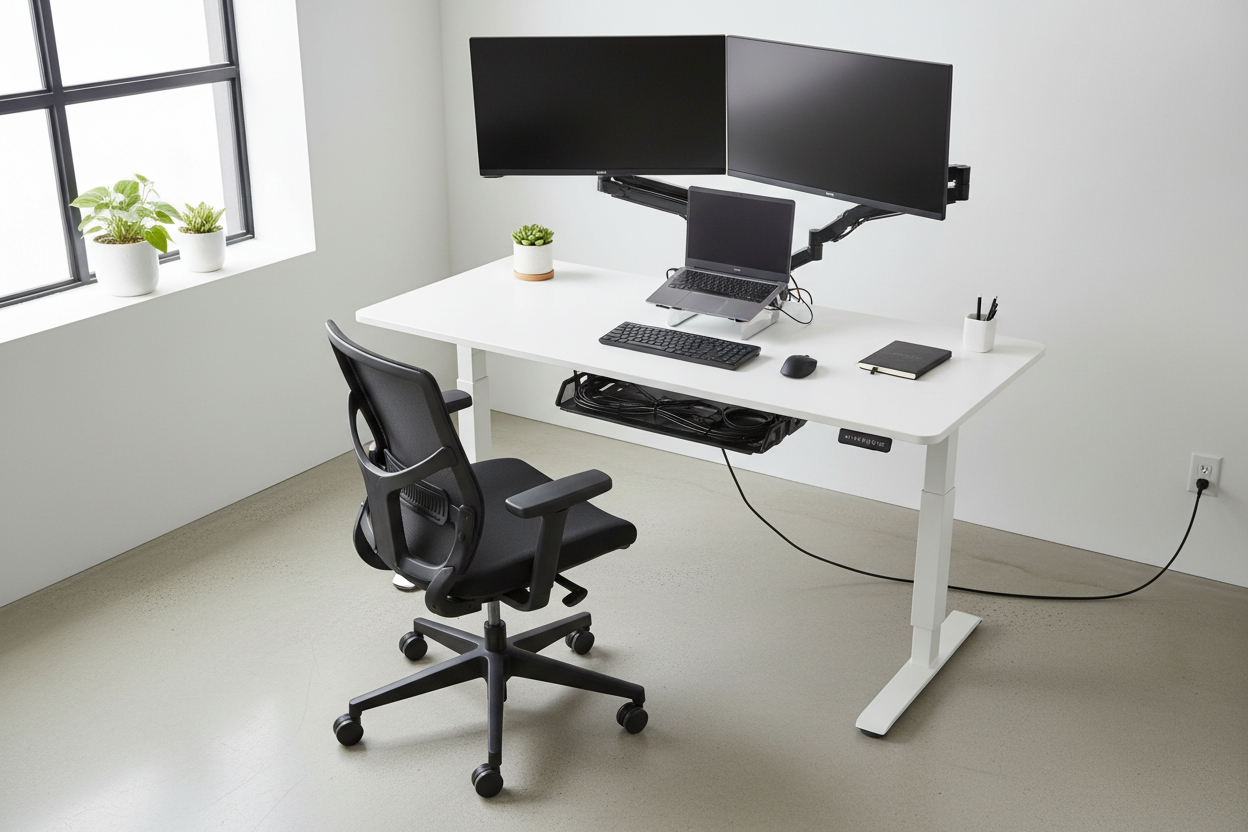
The 40'' x 24" Ergonomic Electric Height Adjustable Standing Desk ($599.99) solves this with three programmable height presets. You can save your perfect sitting height, your standing height, and even a "perching" height for when you want something in between. The electric motor adjusts smoothly and quietly (under 50 decibels), so you're not disrupting video calls every time you switch positions.
What makes this desk worth the investment is the weight capacity—1,766 pounds. That's not just marketing fluff. It means the desk doesn't wobble when you're typing, doesn't shake when you lean on it, and stays rock-solid even with dual monitors, a laptop, and all your other gear loaded on top.
The built-in cable management (rear wiring holes and side hooks) keeps cords organized without the usual tangled mess. This matters more than you'd think—cable clutter creates visual stress and makes it harder to keep your workspace clean.
Shop the 40" Electric Standing Desk →
Desk Size: How Much Space Do You Actually Need?
Here's a mistake almost everyone makes: buying a desk that's too small. You need room for your monitor(s), keyboard, mouse, notebook, coffee cup, and still have space to actually work. The minimum comfortable width is 48 inches if you're using a single monitor, 60 inches if you're running dual monitors.
Depth matters too. A 24-inch deep desk gives you just enough room for a monitor and keyboard. A 30-inch depth is ideal because it lets you position your monitor at the proper distance (20-26 inches from your eyes) while still having desk space in front of your keyboard for your wrists to rest.
The Chair That Won't Destroy Your Back: What Actually Matters
You've probably heard that you need an "ergonomic chair," but what does that actually mean? Most office chairs marketed as ergonomic are just regular chairs with extra padding and a higher price tag.
A truly ergonomic chair has these non-negotiable features:

Adjustable lumbar support: Not just a curved backrest—actual adjustable support that you can move up, down, forward, and backward to match your spine's natural curve. The Ergonomic Office Chair with Lumbar Support ($459.00) uses a dynamic double-back design that moves with you instead of forcing you into one position.
3D armrests: Your armrests need to adjust in three dimensions—height, width, and angle. This lets you position them so your shoulders stay relaxed and your elbows rest at 90 degrees without hunching or reaching.
Seat depth adjustment: If the seat is too deep, it pushes against the back of your knees and cuts off circulation. Too shallow, and your thighs don't get proper support. You need 2-4 inches of space between the seat edge and the back of your knees.
Recline function with tension control: The ability to recline 115-135 degrees takes pressure off your spine and gives you position variety throughout the day. The tension control lets you adjust how much force it takes to recline, so you're not constantly fighting the chair or falling backward.
The chair mentioned above checks all these boxes and adds breathable mesh backing that actually works. Cheap mesh chairs use thin material that stretches out and loses support within months. This one uses high-density mesh that maintains tension and keeps air flowing even during long work sessions.
It's BIFMA certified, which means it's been tested for safety and durability under commercial office standards. The 300-pound weight capacity isn't just about supporting heavier users—it's an indicator of overall build quality and longevity.
Get the Ergonomic Office Chair →
How to Actually Adjust Your Chair (Most People Get This Wrong)
Having an adjustable chair means nothing if you don't adjust it correctly. Here's the proper sequence:
Step 1: Seat height. Sit all the way back in the chair. Your feet should be flat on the floor with your thighs parallel to the ground. Your knees should be at 90 degrees or slightly lower than your hips. If your feet don't reach the floor, you need a footrest.
Step 2: Seat depth. Adjust the seat pan so there's 2-4 inches between the seat edge and the back of your knees. You should be able to slide your fingers into this gap comfortably.
Step 3: Lumbar support. The curve of the backrest should match the curve of your lower back. Adjust the lumbar support up or down until you feel even pressure across your entire lower back—not just at one point.
Step 4: Armrests. Adjust the height so your shoulders are relaxed (not shrugged up or pulled down) and your elbows rest at 90 degrees. The armrests should support your forearms without forcing you to lean to one side.
Step 5: Recline tension. Set the tension so you can recline with gentle pressure but the chair doesn't throw you backward. You should be able to lean back and have the chair support you without effort.
Monitor Setup: Stop Craning Your Neck
Your monitor position has a direct impact on neck pain, eye strain, and headaches. The standard advice is "top of the screen at eye level," but that's oversimplified and often wrong.
The correct monitor height depends on your viewing angle preference and the type of work you do. For most people, the center of the screen should be 15-20 degrees below horizontal eye level. This creates a slight downward gaze that's more comfortable for extended viewing and reduces dry eyes.
If you're doing detailed work that requires reading small text, you might prefer the screen slightly higher. If you're doing creative work where you're looking at the whole screen at once, slightly lower works better.
Single Monitor Setup

The Full Motion Single Monitor Arm ($139.99) gives you complete control over monitor position. The gas spring mechanism lets you adjust height, tilt, swivel, and rotation with one hand—no tools, no knobs to tighten, no fighting with the monitor to get it where you want it.
This matters because your ideal monitor position changes throughout the day. When you're sitting, you want the monitor at one height. When you switch to standing, you need it higher. When you recline in your chair for reading, you might want to tilt it down. The monitor arm makes these adjustments effortless.
The arm supports screens from 13-32 inches and up to 17.6 pounds, which covers everything from a basic office monitor to a large 4K display. It uses VESA mounting (75x75mm or 100x100mm), which is the industry standard—if your monitor was made in the last decade, it's compatible.
The built-in cable management keeps cords organized and out of sight. You can route cables through the arm itself, so you don't have wires dangling across your desk.
Dual Monitor Setup
If you're running two monitors, positioning becomes more complex. The wrong setup creates constant neck rotation and muscle imbalance. The right setup feels natural and reduces the need to turn your head.
The Rackora Dual Monitor Desk Mount ($99.00-$139.00) comes pre-assembled, which is a bigger deal than it sounds. Most dual monitor arms require 30-60 minutes of assembly and adjustment before they're usable. This one is ready to go out of the box.
Each arm supports up to 20 pounds and adjusts independently across a 40cm height range. This means you can position your primary monitor directly in front of you and your secondary monitor slightly to the side and lower—the most ergonomic dual monitor configuration.
The three-point adjustable arms give you precise control over angle and distance. You can pull monitors closer when you need to focus on details, push them back when you want to see both screens at once, and rotate them to portrait orientation for coding or document review.
Laptop Users: Your Setup Needs the Most Help
Laptops are ergonomic nightmares. The screen is too low, the keyboard is too high, and you're forced into a hunched position that guarantees neck and shoulder pain.
The solution is simple: separate the screen from the keyboard. Use a laptop stand to raise the screen to proper eye level, then add an external keyboard and mouse.

The Rackora Ergo Laptop Stand Elite Edition ($79.99) is built from aluminum alloy, which means it's sturdy enough to hold your laptop without wobbling but light enough to move around easily. The adjustable height and angle let you position your screen exactly where you need it.
The open design improves airflow around your laptop, which prevents thermal throttling during intensive tasks. If you've ever noticed your laptop slowing down during video calls or when running multiple programs, overheating is usually the culprit. Better cooling means better performance.
The foldable design makes it easy to pack up and move if you work from different locations. It supports laptops from 10-17 inches, which covers everything from a small ultrabook to a large gaming laptop.
Anti-slip silicone pads keep your laptop secure without scratching the case. The integrated cable management keeps your charging cable and other cords organized.
Keyboard and Mouse Position: The Details That Matter
Your keyboard and mouse position affects your wrists, forearms, shoulders, and neck. Small adjustments here can eliminate pain that you've been dealing with for months.
Keyboard position: Your keyboard should be directly in front of you, not off to one side. The center of the keyboard (usually the G and H keys) should align with the center of your body. This prevents you from twisting to one side while typing.
Your elbows should be at 90 degrees or slightly more open (100-110 degrees). Your wrists should be straight—not bent up, down, or to the side. If you have to bend your wrists to type, your keyboard is positioned wrong.
Mouse position: Your mouse should be at the same height as your keyboard and close enough that you don't have to reach for it. Reaching forward or to the side creates shoulder tension and can lead to rotator cuff problems over time.
If you're using a laptop trackpad, you're forcing your hand into an awkward position every time you move the cursor. Get an external mouse. It doesn't have to be expensive—even a basic wireless mouse is better than a trackpad for ergonomics.
Lighting: The Overlooked Factor in Eye Strain and Headaches
Bad lighting causes more problems than most people realize. Eye strain, headaches, difficulty focusing, and end-of-day fatigue are often lighting issues, not screen time issues.
The ideal workspace lighting has three components:
Ambient lighting: General room lighting that's bright enough to see clearly but not so bright that it creates glare on your screen. Natural light is best, but if you're working in a room without windows, use overhead lighting with a dimmer switch so you can adjust throughout the day.
Task lighting: A desk lamp that illuminates your keyboard, notebook, and desk surface without shining directly in your eyes or creating screen glare. Position it to the side of your monitor, not behind it.
Bias lighting: A light source behind your monitor that reduces the contrast between your bright screen and the darker wall behind it. This reduces eye strain during extended screen time. You can use a simple LED strip or a dedicated monitor backlight.
Avoid working in a dark room with only your screen providing light. The high contrast forces your pupils to constantly adjust, which causes eye fatigue and headaches.
The 20-20-20 Rule and Other Micro-Break Strategies
Even with a perfect ergonomic setup, you still need to move. Staying in any position for too long causes problems, no matter how good that position is.
The 20-20-20 rule is simple: every 20 minutes, look at something 20 feet away for 20 seconds. This gives your eye muscles a break from focusing on your screen and reduces eye strain.
But you need more than just eye breaks. Here are micro-break strategies that actually work:
The standing transition: If you have a standing desk, switch positions every 30-45 minutes. Don't wait until you're uncomfortable—switch before you feel the need to move.
The shoulder roll: Every hour, do 10 slow shoulder rolls backward. This counteracts the forward shoulder position that develops during computer work.
The hip flexor stretch: Stand up, take a step forward into a lunge position, and hold for 30 seconds on each side. This reverses the hip flexor tightening that happens when you sit.
The neck release: Gently tilt your head to one side, bringing your ear toward your shoulder. Hold for 20 seconds, then switch sides. This releases tension in the neck muscles that support your head all day.
Set a timer or use an app to remind you to take these breaks. You won't remember on your own—you'll get absorbed in work and realize three hours have passed without moving.
Cable Management: Less Clutter, Less Stress
This might seem minor, but cable clutter creates low-level stress that accumulates throughout the day. Visual chaos makes it harder to focus and creates a sense of disorganization even when everything else is in order.
Here's a simple cable management system:
Step 1: Reduce cables. Use wireless peripherals where possible—keyboard, mouse, headphones. Fewer cables means less to manage.
Step 2: Route cables together. Use cable clips or a cable sleeve to bundle cords together and route them along the back edge of your desk or down the desk leg.
Step 3: Label cables. Use cable labels or colored tape to mark which cable goes to which device. This saves time when you need to unplug something or troubleshoot a connection issue.
Step 4: Use a power strip with mounting. Mount your power strip to the underside of your desk or the back of your desk leg. This keeps it accessible but out of sight and prevents the tangle of cables on the floor.
Temperature and Air Quality: The Hidden Productivity Killers
Your workspace temperature affects your focus, energy levels, and comfort more than you probably realize. The optimal temperature for office work is 70-73°F (21-23°C). Below 68°F, you'll feel cold and distracted. Above 75°F, you'll feel sluggish and have trouble concentrating.
If you can't control the room temperature, adjust your clothing or use a small desk fan or space heater to create a comfortable microclimate around your workspace.
Air quality matters too. Stuffy, stale air makes you tired and foggy. If you're working in a room with the door closed all day, you're breathing recycled air that's low in oxygen and high in CO2. Open a window for 5-10 minutes every hour, or use an air purifier with a HEPA filter to keep the air fresh.
Plants help too. A few small plants on your desk or nearby shelf improve air quality and add visual interest to your workspace. Snake plants, pothos, and spider plants are low-maintenance options that thrive in office environments.
Personalizing Your Setup: One Size Doesn't Fit All
Everything in this guide is based on ergonomic principles and research, but your body is unique. What works perfectly for someone else might not work for you.
Pay attention to how you feel throughout the day. If you're getting pain or discomfort in a specific area, that's your body telling you something needs to adjust. Don't ignore it and hope it goes away—it won't.
Make small adjustments and give them time to work. Change one thing at a time so you can tell what's helping and what's not. If you change everything at once and feel better, you won't know which change made the difference.
Take photos of your setup from the side and front. Compare your posture to the ergonomic guidelines in this article. Often, you'll spot problems in photos that you don't notice when you're sitting at your desk.
The Investment Mindset: Why Cheap Gear Costs More in the Long Run
You might be looking at the prices in this guide and thinking, "That's too expensive." But consider the alternative.
A cheap desk that wobbles and doesn't adjust properly will frustrate you every day. A cheap chair that doesn't support your back will cause pain that gets worse over time. Cheap monitor arms that drift down throughout the day will force you to constantly readjust your screen.
The cost of poor ergonomics isn't just the price of the cheap equipment—it's the chiropractor visits, the physical therapy, the pain medication, the reduced productivity, and the long-term health problems that develop from years of poor posture.
Quality ergonomic equipment is an investment in your health and productivity. It pays for itself through reduced pain, better focus, and the ability to work comfortably for years instead of months.
Putting It All Together: Your Action Plan
Building an ergonomic workspace doesn't have to happen all at once. Here's a prioritized approach based on impact:
Priority 1: Chair and desk height. These are the foundation. If you can only afford one upgrade right now, get a proper chair or a standing desk. Everything else builds on this foundation.
Priority 2: Monitor position. If you're using a laptop, get a laptop stand and external keyboard. If you're using a desktop monitor, get a monitor arm. Fixing your screen height eliminates neck pain faster than anything else.
Priority 3: Keyboard and mouse. If you're using a laptop trackpad, get an external mouse. If your keyboard forces your wrists into awkward positions, replace it.
Priority 4: Lighting and environment. Add task lighting, adjust room temperature, improve air quality. These changes are inexpensive but have a noticeable impact on comfort and focus.
Priority 5: Cable management and personalization. Once the basics are in place, refine your setup with better cable management, plants, and personal touches that make your workspace somewhere you actually want to spend time.
Frequently Asked Questions
How long does it take to adjust to a standing desk?
Most people need 2-4 weeks to build up their standing tolerance. Start with 15-20 minutes of standing per hour and gradually increase. Don't try to stand all day immediately—you'll get fatigued and give up. The goal is alternating between sitting and standing, not replacing sitting entirely.
Is an expensive ergonomic chair really worth it?
Yes, if you're sitting for 4+ hours per day. A quality ergonomic chair lasts 7-10 years and prevents chronic pain that costs far more to treat than the chair costs to buy. Cheap chairs wear out in 1-2 years and don't provide proper support even when new.
What's the ideal monitor distance from my eyes?
20-26 inches (arm's length) for most people. If you have to lean forward to read text, your monitor is too far away or your font size is too small. If you find yourself leaning back, it's too close.
Should I use a footrest?
If your feet don't rest flat on the floor when your chair is at the correct height, yes. A footrest prevents your legs from dangling and improves circulation. It should be angled slightly (5-15 degrees) and positioned so your knees are at 90 degrees or slightly lower than your hips.
How often should I take breaks?
Micro-breaks (20-30 seconds) every 20 minutes for eye rest. Movement breaks (2-3 minutes) every hour to stand, stretch, and walk around. Longer breaks (10-15 minutes) every 2-3 hours to step away from your workspace completely.
Can I use a regular desk with a monitor arm?
Yes, as long as your desk is sturdy and has a flat edge for the clamp mount. Most monitor arms use a C-clamp that attaches to the desk edge or a grommet mount that goes through a hole in the desk. Check your desk thickness—most clamps work with desks 0.4-3.5 inches thick.
What's the best way to position dual monitors?
Place your primary monitor directly in front of you and your secondary monitor to the side at a 30-45 degree angle. Both monitors should be at the same height with the top of the screens at or slightly below eye level. If you use both monitors equally, position them side-by-side with the gap between them centered in front of you.
Do I need a separate keyboard and mouse if I have a laptop?
Yes, if you're working on your laptop for more than 2 hours per day. Using the built-in keyboard and trackpad forces you into a hunched position with your neck bent down. A laptop stand with external keyboard and mouse lets you position the screen at proper eye level while keeping your hands in a neutral position.
How do I know if my chair is adjusted correctly?
Check these points: feet flat on floor, thighs parallel to ground, 2-4 inches between seat edge and back of knees, lower back supported by lumbar curve, shoulders relaxed with elbows at 90 degrees, armrests supporting forearms without forcing shoulders up or down.
What's the difference between a cheap monitor arm and an expensive one?
Build quality, smooth adjustment, and stability. Cheap arms drift down over time, require constant tightening, and wobble when you type. Quality arms use gas springs that maintain position without drift, adjust smoothly with one hand, and stay rock-solid even with a heavy monitor.
Final Thoughts: Your Workspace, Your Health
You spend a third of your life working. If you're working from home, your workspace is where you'll spend 40-50 hours every week for years. That's too much time to spend in pain or discomfort.
Building an ergonomic workspace isn't about buying the most expensive equipment or following rigid rules. It's about creating an environment that supports your body, reduces strain, and lets you focus on your work instead of your aching back.
Start with the basics—a proper chair, correct desk height, and good monitor position. Add improvements over time as your budget allows. Pay attention to how your body feels and make adjustments when something isn't working.
Your future self will thank you for the investment you make today.
Disclaimer: This content is for informational purposes only and does not constitute medical advice. If you have chronic or severe pain, please consult a healthcare professional or physical therapist.
