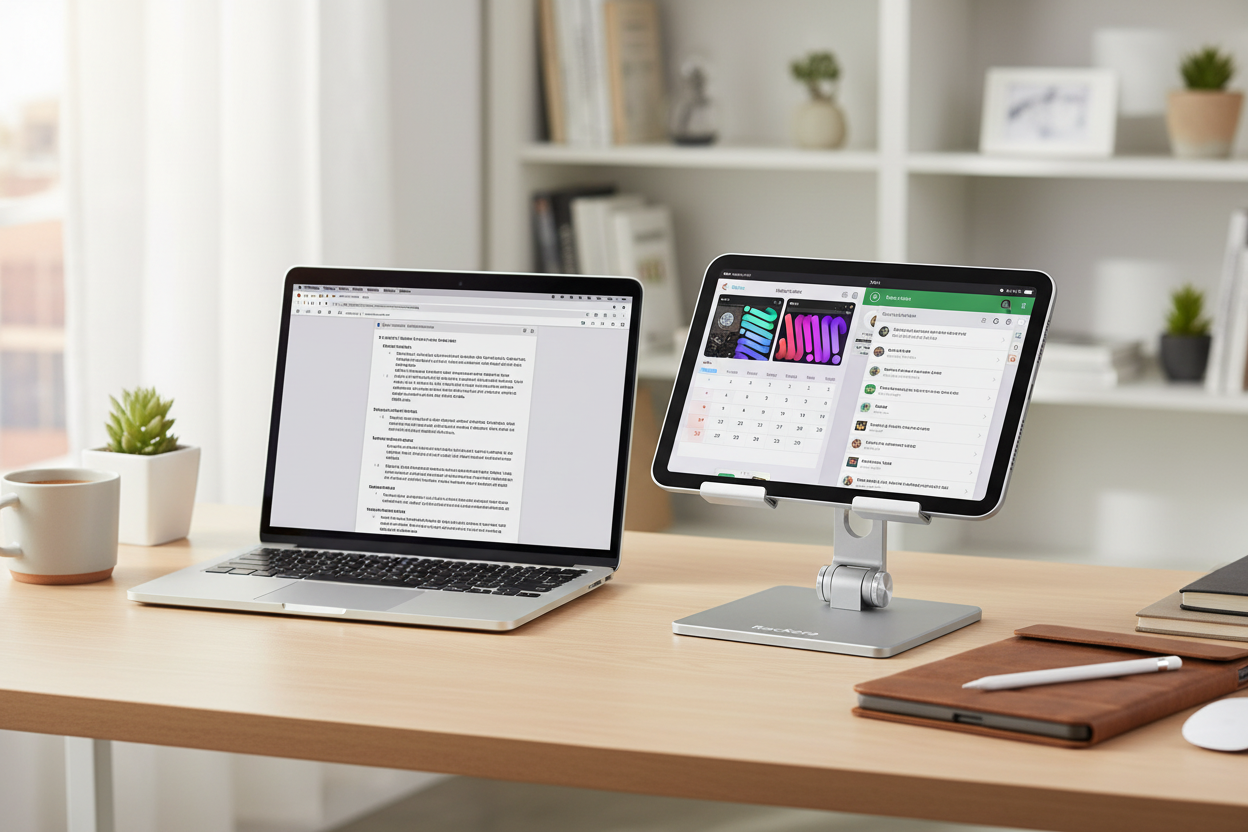
Why Your iPad Deserves Better Than Your Lap
Let's be honest—we've all been there. You're deep into a project, toggling between windows on your laptop like you're playing some kind of digital whack-a-mole. Your browser has seventeen tabs open, your email is buried somewhere in the background, and that reference document you need? Good luck finding it without losing your train of thought.
Here's the thing: you probably already own the solution. That iPad sitting on your coffee table, the one you use for Netflix and scrolling through recipes? It's not just a content consumption device. With the right setup, it can transform into a legitimate second screen that actually makes your workday easier.
I'm not talking about some complicated tech setup that requires a computer science degree. I'm talking about a simple iPad stand and a few minutes of your time. The difference it makes? Honestly, it's one of those "why didn't I do this sooner" moments.
The Real Cost of Single-Screen Syndrome
Before we dive into solutions, let's talk about what you're actually losing by not using your iPad as a second screen. Studies show that dual-monitor setups can boost productivity by 20-30%. But here's what those numbers don't tell you: it's not just about speed. It's about mental energy.
Every time you minimize a window to check something else, you're creating what psychologists call a "cognitive switch cost." Your brain has to reorient itself, remember what you were doing, and get back into flow. Do that fifty times a day, and you're basically running a mental marathon before lunch.
With an iPad as your second screen, you can keep your email visible while you work on that presentation. You can reference your project management tool without burying your actual work. You can join a video call without sacrificing your entire workspace. It's not revolutionary—it's just smart.
What Makes a Good iPad Stand for Dual-Screen Work
Not all iPad stands are created equal, especially when you're using your tablet as a working second screen rather than just propping it up to watch videos. Here's what actually matters:
Height Adjustability Is Non-Negotiable
Your iPad screen needs to sit at roughly the same height as your main monitor. If it's too low, you'll be craning your neck down all day. Too high, and you'll strain looking up. The Rackora Pro Stand 100 ($59.99) gets this right with its wide range of height adjustment, letting you position your iPad exactly where your eyes naturally fall.

Stability Matters More Than You Think
When you're using your iPad as a second screen, you're not just glancing at it occasionally. You're tapping, swiping, and interacting with it constantly. A wobbly stand turns every interaction into an exercise in frustration. Look for stands with a solid base and quality construction. The Rackora Adjustable Tablet Stand Holder ($49.99) uses a weighted base that keeps everything rock-solid, even when you're tapping away at a virtual keyboard.

Angle Flexibility for Different Tasks
Sometimes you need your iPad at a steep angle for reading documents. Other times, you want it nearly flat for sketching or note-taking with an Apple Pencil. A good stand adapts to how you work, not the other way around. The Rackora Multi-Function Tablet Case Stand with Pencil Holder ($39.99-$46.99) offers multiple viewing angles and keeps your Apple Pencil within reach—perfect for those moments when you need to annotate a PDF or sketch out an idea.

Setting Up Your iPad as a Second Screen: The Practical Guide
Alright, you've got your stand. Now what? Let's walk through the actual setup process, because knowing the theory is one thing—making it work in your actual workspace is another.
The Sidecar Method (For Mac Users)
If you're in the Apple ecosystem, you've got it easy. Sidecar is built right into macOS, and it works surprisingly well. Here's the quick version:
Open System Preferences, click on Displays, and select your iPad from the dropdown menu. That's it. Your iPad is now an extension of your Mac's desktop. You can drag windows over to it, use it as a mirrored display, or set it up as a completely independent screen.
The key is positioning. Place your iPad stand to the left or right of your main monitor, depending on your dominant hand and workflow. Most people find that having their secondary screen on the side they don't use for their mouse feels more natural. Your iPad becomes your reference screen, while your main monitor stays focused on active work.
The Third-Party App Route (For Everyone Else)
Windows users and folks who want more features than Sidecar offers have plenty of options. Apps like Duet Display, Splashtop, and Luna Display turn your iPad into a second screen with varying degrees of functionality and performance.
The setup process is similar across most apps: install the software on both your computer and iPad, connect them via USB or Wi-Fi, and configure your display settings. Wi-Fi is more convenient, but USB gives you better performance if you're doing graphics-intensive work.
Optimizing Your Physical Setup
Here's where your stand choice really matters. Position your iPad so the top of the screen is at or slightly below eye level. The distance should match your main monitor—typically 20-30 inches from your eyes. If you're constantly leaning forward or backward to see your iPad clearly, adjust the stand height or angle.
For home office setups where space is tight, the Rackora Tablet Stand + Screen Protector Bundle ($53.98-$54.98) gives you a compact footprint without sacrificing stability. The included screen protector is a nice bonus if you're worried about fingerprints and smudges from all that tapping.

Real-World Workflows That Actually Work
Theory is great, but let's talk about how this actually plays out in daily work. Here are some scenarios where an iPad second screen setup really shines:
The Writer's Setup
Keep your research, interview notes, or outline on your iPad while your main screen stays focused on your actual writing. No more minimizing windows every thirty seconds to check a fact or reference a quote. Your flow stays intact, and your word count thanks you.
The Designer's Companion
Use your iPad to display your design brief, client feedback, or reference images while your main monitor handles your design software. Even better, if you're using apps that support Apple Pencil, you can sketch rough concepts on your iPad and refine them on your main screen.
The Developer's Dashboard
Code on your main screen, documentation on your iPad. Or flip it: code on both screens and use your iPad for terminal windows, error logs, or your project management board. The flexibility means you can adapt your setup to whatever you're working on.
The Meeting Multitasker
Video calls on your iPad, actual work on your main screen. You stay visible and engaged in the meeting while still being able to take notes, pull up documents, or (let's be real) actually get some work done during those meetings that could have been emails.
The Ergonomics Angle Nobody Talks About
Here's something that doesn't get enough attention: using an iPad as a second screen can actually improve your workspace ergonomics, but only if you set it up correctly.
The problem with most laptop-only setups is that your screen is too low. You end up hunching forward, craning your neck down, and wondering why your shoulders feel like concrete by 3 PM. Adding an iPad as a second screen gives you an excuse to rethink your entire setup.
Raise your laptop on a stand, connect a separate keyboard and mouse, and position your iPad at the proper height. Now you've got two screens at the right height, your keyboard at the right level, and your neck in a neutral position. Your chiropractor will be disappointed by the loss of business, but your body will thank you.
For a premium solution that handles both tablets and laptops with serious ergonomic adjustability, the Rackora Premium K80 Multipurpose Ergonomic Stand ($189.99) is worth considering. It's an investment, but if you're spending 40+ hours a week at your desk, the ergonomic benefits pay dividends.

Common Mistakes (And How to Avoid Them)
Let's talk about what doesn't work, because I've made these mistakes so you don't have to.
Mistake #1: Treating Your iPad Like a Monitor
Your iPad isn't just a dumb display—it's a full computer. Don't waste that capability by only using it to mirror or extend your desktop. Use iPad-native apps that sync with your main computer. Keep Slack or Teams open on your iPad. Use it for your calendar and task manager. Let it be its own thing while also serving as your second screen.
Mistake #2: Ignoring Cable Management
If you're using a wired connection for better performance, don't let cables turn your desk into a tangled mess. Use cable clips, routing channels, or even just some velcro straps to keep things tidy. A clean desk isn't just aesthetic—it's functional. You'll be amazed how much better you focus when you're not staring at cable chaos.
Mistake #3: Positioning It Too Far Away
Your iPad needs to be close enough that you can reach it comfortably for touch interactions. If you have to lean forward or stretch to tap something, you've positioned it wrong. Adjust your stand placement until everything feels natural.
Mistake #4: Forgetting About Lighting
Screen glare is real, and it's annoying. Position your iPad stand so you're not fighting reflections from windows or overhead lights. Sometimes a small adjustment in angle or position makes a huge difference in visibility.
Beyond the Basics: Advanced iPad Second Screen Techniques
Once you've got the fundamentals down, there are some next-level tricks worth exploring.
The Triple-Screen Setup
Who says you have to stop at two screens? If you've got a desktop monitor, a laptop, and an iPad, you can create a three-screen setup that gives you serious workspace. Main monitor for primary work, laptop screen for communication tools, iPad for reference materials or monitoring dashboards. It sounds excessive until you try it.
The Vertical Orientation Trick
Most people default to landscape orientation for their iPad, but portrait mode has its uses. It's perfect for reading long documents, viewing full web pages without scrolling, or keeping a Twitter/X feed or Slack channel visible. Many stands, including the ones mentioned earlier, support both orientations.
The Portable Second Screen
Here's a game-changer for people who work in different locations: your iPad second screen setup can travel with you. A lightweight, foldable stand fits in any bag, and suddenly you've got a dual-screen setup at the coffee shop, the library, or your client's office. It's like bringing your entire workspace with you.
The Cost-Benefit Reality Check
Let's talk money for a second. A dedicated second monitor costs anywhere from $150 to $500+. An iPad stand costs $40-$200 depending on features and quality. If you already own an iPad, you're looking at a fraction of the cost to achieve similar productivity benefits.
But it's not just about the initial cost. A second monitor takes up desk space, requires its own power source, and isn't portable. Your iPad setup is flexible, travels with you, and serves double duty as both a standalone tablet and a second screen. The value proposition is pretty compelling.
For most people, a mid-range stand in the $50-$60 range hits the sweet spot of quality and affordability. You get the adjustability and stability you need without overpaying for features you won't use.
Troubleshooting Common Issues
Even the best setups hit snags sometimes. Here's how to solve the most common problems:
Connection Drops or Lag
If you're using a wireless connection and experiencing lag or disconnections, try switching to a wired USB connection. It's less convenient but more reliable. Also, make sure both devices are on the same Wi-Fi network and that your router isn't being overwhelmed by other devices.
Color Matching Between Screens
Your iPad and your main monitor probably don't display colors identically. For most work, this doesn't matter. But if you're doing design or photo editing, you'll want to calibrate your displays or at least adjust brightness and color temperature to get them reasonably close.
Touch Responsiveness Issues
If your iPad isn't responding well to touch when used as a second screen, check your stand stability first. A wobbly stand makes precise tapping difficult. Also, make sure your screen protector (if you're using one) is properly applied without air bubbles that can interfere with touch sensitivity.
The Future of iPad as Second Screen
Apple keeps improving Sidecar with each macOS update, and third-party apps are getting better too. We're seeing better wireless performance, lower latency, and more features that blur the line between "second screen" and "integrated workspace."
The iPad Pro's ProMotion display with its 120Hz refresh rate makes it smoother than many dedicated monitors. The M-series chips in newer iPads mean they can handle demanding tasks without breaking a sweat. We're reaching a point where an iPad as a second screen isn't a compromise—it's actually a premium option.
Making the Decision: Is This Setup Right for You?
Here's the honest truth: an iPad second screen setup isn't for everyone. If you already have a multi-monitor setup you love, or if you don't own an iPad, the value proposition changes. But if you've got an iPad that's underutilized, and you're working on a single screen feeling cramped, this is one of the easiest productivity upgrades you can make.
The barrier to entry is low—a decent stand costs less than a nice dinner out. The potential upside is significant—better focus, less window-switching, and a more comfortable workspace. And if it doesn't work for you? You've still got a nice stand for watching videos or following recipes while you cook.
Start simple. Get a quality adjustable stand, try the built-in Sidecar feature if you're on Mac, and give it a week. Pay attention to how often you use it, whether it actually reduces your window-switching, and how it affects your workflow. The answer will be pretty obvious pretty quickly.
Frequently Asked Questions
Can I use any iPad as a second screen?
For Sidecar, you need an iPad running iPadOS 13 or later and a Mac running macOS Catalina or later. Older iPads can still work as second screens using third-party apps like Duet Display or Splashtop, though performance may vary.
Does using my iPad as a second screen drain the battery quickly?
Yes, using your iPad as a second screen is more power-intensive than casual use. For extended work sessions, keep your iPad plugged in. Most quality stands have cable routing to keep your charging cable tidy.
Will this work with my Windows PC?
Absolutely. While Sidecar is Mac-only, apps like Duet Display, Splashtop Wired XDisplay, and Spacedesk work great with Windows. Some require a paid subscription, but many offer free trials so you can test before committing.
How much desk space do I need for this setup?
A typical iPad stand has a footprint of about 6-8 inches. You'll want to position it within arm's reach of your main workspace, so figure on about 10-12 inches of desk width total. Compact stands take up even less space.
Can I use my iPad vertically as a second screen?
Yes, both Sidecar and most third-party apps support portrait orientation. It's great for reading documents, viewing code, or monitoring social media feeds. Make sure your stand supports vertical orientation—most adjustable stands do.
What's the best position for my iPad second screen?
Most people prefer their secondary screen to the left or right of their main monitor, positioned at roughly the same height. The exact placement depends on your dominant hand, desk layout, and personal preference. Experiment to find what feels natural.
Do I need a screen protector if I'm using my iPad as a second screen?
It's not required, but it's a good idea if you'll be tapping and swiping frequently. A matte screen protector can also reduce glare, which is helpful when you're staring at screens all day. The Rackora bundle includes one if you want to cover both bases at once.
Can I use my iPad for video calls while using it as a second screen?
Yes, but it depends on your setup. With Sidecar, your iPad is functioning as a display extension, so you'd run the video call app on your Mac and display it on the iPad screen. Alternatively, you can run the video call natively on your iPad while using it as a second screen for other tasks—just be aware this is more demanding on the device.
How do I prevent neck strain when using two screens?
Position both screens at eye level, about 20-30 inches from your face. The top of each screen should be at or slightly below eye level. If you find yourself constantly turning your head to one side, try positioning your screens in a slight arc rather than a straight line. Take regular breaks to look away from screens entirely.
Is the wireless connection good enough for video editing or gaming?
For most productivity work, wireless is fine. For video editing, color-critical design work, or gaming, a wired connection will give you better performance and lower latency. USB connections are more reliable than Wi-Fi for demanding tasks.
Your Next Steps
If you've read this far, you're probably ready to give the iPad second screen setup a try. Here's your action plan:
First, choose a stand that fits your needs and budget. For most people, the Rackora Adjustable Tablet Stand Holder at $49.99 offers the best balance of features and value. If you want premium adjustability and ergonomics, step up to the Rackora Pro Stand 100 at $59.99.
Second, set up your software. Mac users should try Sidecar first—it's free and built-in. Windows users can start with a free trial of Duet Display or Splashtop to see which interface you prefer.
Third, give it a real test. Use your new setup for at least a full work week before deciding if it's for you. Pay attention to which tasks benefit most from the extra screen real estate and adjust your workflow accordingly.
The goal isn't to create some perfect, Instagram-worthy workspace. The goal is to make your actual work easier and more comfortable. If an iPad stand and a second screen help you do that, then it's worth every penny.
Your iPad is capable of more than streaming and scrolling. Give it a job to do, and you might be surprised at how much it changes your workday.
