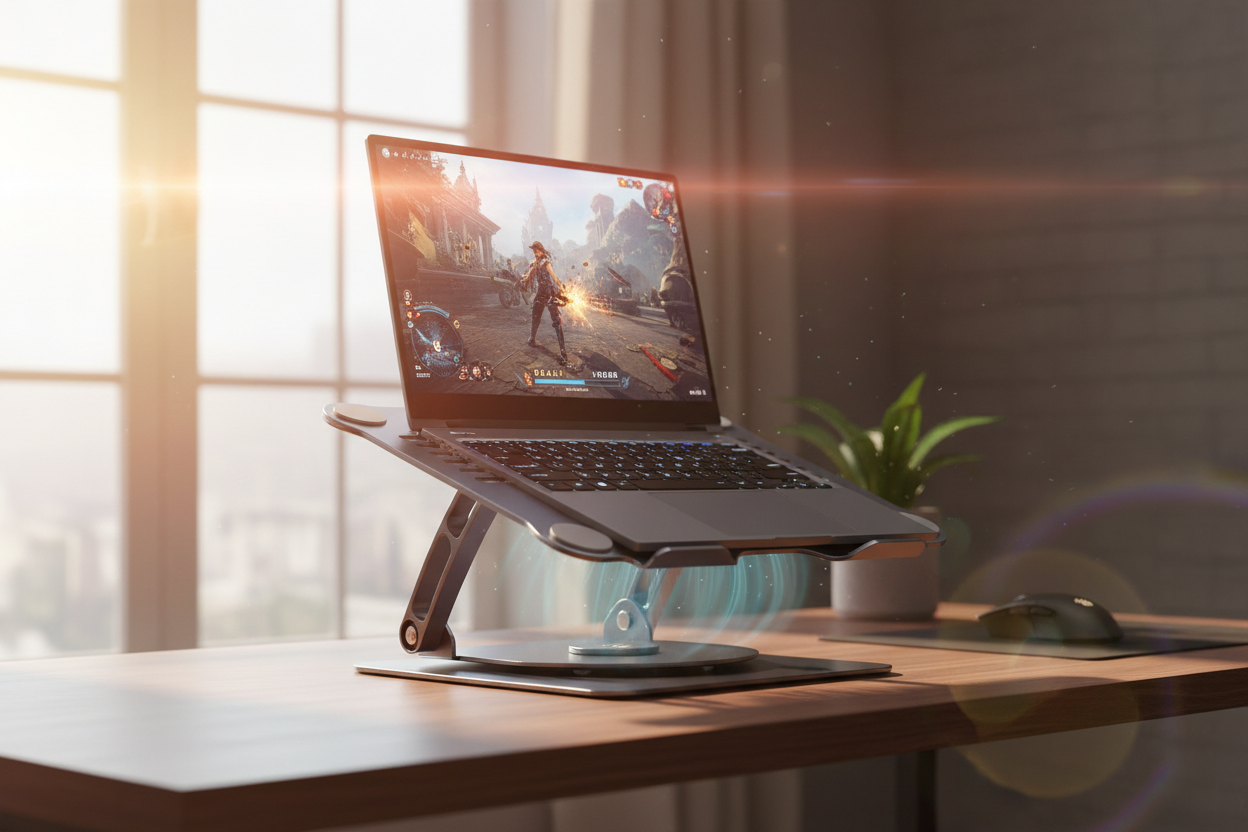
It's 94°F outside. You've got the AC running, a cold drink on the desk, and you're finally sitting down for a long gaming session. You load up your game, get into a match — and then it happens. The frame rate tanks. The fans scream. Your laptop feels like it's trying to cook breakfast. You're not imagining it: your gaming laptop is overheating, and summer is making it dramatically worse.
This isn't a rare problem. It's one of the most common complaints from gamers and creative professionals every single July and August. And the frustrating part? Most people try to fix it the wrong way — they buy a cheap metal stand, prop the laptop up, and wonder why nothing changed. We'll get into exactly why that doesn't work, and what actually does.
Let's break it all down.
The Thermal Throttling Nightmare: When Your Laptop Punishes You for Playing
Here's something most people don't realize: your laptop is designed to protect itself. When internal temperatures climb past a certain threshold — usually somewhere between 90°C and 100°C on the CPU or GPU — the processor automatically reduces its clock speed to generate less heat. This is called thermal throttling, and it's the reason your game goes from buttery smooth to a slideshow without warning.
You didn't change any settings. Your internet is fine. Your hardware isn't broken. The laptop is just trying not to melt itself.
The symptoms are unmistakable once you know what to look for:
- FPS drops that happen suddenly mid-match, not gradually
- Stuttering in games that normally run perfectly
- Design software like Premiere Pro or Blender slowing to a crawl during renders
- The laptop fan running at full blast constantly, even during light tasks
- The bottom of the chassis getting hot enough to be uncomfortable on your lap
- Longer load times than usual
In summer, this problem gets significantly worse. When ambient room temperature is already 85–95°F, your laptop's cooling system has to work much harder to maintain safe operating temperatures. The delta between internal and external temperature shrinks, which means heat dissipates more slowly. A laptop that runs fine in a 68°F room in January might throttle constantly in a 90°F room in July — even if nothing else changed.
The fix isn't a software tweak or a driver update. It's airflow. You need to get hot air away from the laptop faster than it's being generated, and you need to give the intake vents room to breathe.

Why Your Metal Stand Isn't Cutting It in Summer Heat
Passive laptop stands — the kind made from aluminum or steel with no moving parts — are genuinely useful accessories. They raise your screen to eye level, improve your posture, and allow some natural airflow underneath the chassis. In a climate-controlled office at 70°F, they do a decent job.

But in summer? They hit a hard wall.
Here's the physics: passive stands rely on convection cooling. Hot air rises away from the laptop naturally, and cooler air flows in from below. This works reasonably well when the surrounding air is cool. But when ambient temperature is 88–95°F, the air flowing under your laptop is already warm. You're essentially trying to cool something with warm air, and the laws of thermodynamics are not on your side.
Metal stands also conduct heat. If your laptop is sitting on an aluminum stand and the stand itself gets warm from the laptop's output, it can actually radiate heat back upward — the opposite of what you want.
The result: you spend $30–$50 on a sleek metal stand, prop your laptop up, and your temperatures drop by maybe 3–5°C. That's not enough to prevent throttling when you were already running at 95°C.
What you actually need in summer is active cooling — a fan that forces air movement regardless of ambient temperature. Instead of waiting for convection to do the work, an active cooling stand pushes cool air directly into the laptop's intake vents, dramatically increasing the rate of heat dissipation.
The difference in real-world temperatures is not subtle. We're talking 15–20°C drops in CPU and GPU temps, which is the difference between constant throttling and sustained peak performance.

The Rackora Active Cool Base: What 20°C Actually Means for Your Game
The Rackora 360° Rotating Laptop Stand with Cooling Fan is built specifically for this problem. It's not a passive riser with a USB fan duct-taped to it — it's an integrated system where the stand and the cooling mechanism are designed together to maximize airflow efficiency.

Let's talk about what a 20°C temperature drop actually means in practice.
If your CPU was running at 97°C during a gaming session (which is right at the throttling threshold for most processors), dropping to 77°C means:
- Your processor runs at full clock speed instead of throttling back
- Frame rates stabilize — no more sudden FPS drops mid-match
- Your laptop's fans don't have to run at maximum RPM constantly, which means less noise
- Long-term, your hardware experiences less thermal stress, which extends its lifespan
- Battery life can actually improve slightly, since throttled processors sometimes draw more power trying to complete tasks
The integrated cooling fan in the Rackora stand operates quietly — this is worth emphasizing because a lot of cooling pads sound like a small aircraft taking off. The Rackora fan is designed for quiet mechanical operation, so it doesn't compete with your game audio or disrupt a work call. You get the thermal benefit without the noise penalty.
The stand also features a 360° rotating base, which is genuinely useful beyond just looking cool. If you're gaming solo, you face it toward you. If someone walks over to watch, you rotate it. If you're doing a presentation or showing a colleague something on screen, you spin it around without picking up the whole laptop. It's a small thing that becomes surprisingly convenient in daily use.
Height adjustment is built in, with multiple settings that let you raise the screen to eye level. This matters more than people think — we'll get into the ergonomics in the next section.
→ Get the Rackora Active Cooling Stand — $129.99

Ergonomics for Marathon Sessions: Your Neck Will Thank You
Here's a problem that doesn't get talked about enough in the gaming community: laptop neck. When you're gaming on a laptop sitting flat on a desk, your screen is roughly 8–12 inches below your natural eye level. To see it, you tilt your head down. Do that for 3–4 hours and you'll feel it in your neck and upper back.
Physical therapists have a name for this: forward head posture. For every inch your head moves forward from its neutral position, the effective weight on your cervical spine increases by about 10 pounds. At a 45-degree forward tilt, your neck is supporting the equivalent of 49 pounds. That's why you feel wrecked after a long gaming session even if you didn't move much.
A proper laptop stand solves this by raising the screen to eye level — typically 15–20cm of elevation, depending on your desk height and chair. The Rackora stand's multiple height adjustment settings let you dial in the exact position that keeps your gaze horizontal, which is the ergonomically correct viewing angle.
The practical benefit for gaming specifically: when your screen is at eye level, your field of view aligns naturally with the game world. You're not looking down at a slight angle, which can subtly affect your spatial awareness in first-person games. It's a small edge, but competitive players notice it.
For creative professionals — video editors, 3D artists, designers — the ergonomic benefit is even more significant because sessions tend to run longer. Eight hours of looking down at a laptop is a recipe for chronic neck pain. Eight hours with the screen at eye level is just a normal workday.

The Rackora Gaming Laptop Stand Elite Edition: For Gamers Who Want Maximum Adjustability
If you want a stand focused on adjustability and build quality without the integrated fan — maybe you already have good room cooling, or you prefer to use a separate cooling pad — the Rackora Gaming Laptop Stand Elite Edition is worth a serious look.

The headline feature here is the 180° dual-axis adjustment. Most laptop stands give you a fixed angle or a limited range of tilt. The Elite Edition lets you tilt, swivel, and rotate across a full 180° range, which means you can find a position that works whether you're sitting upright, leaning back, or working from an unusual angle.
The construction is anodized aluminum alloy with premium silicone contact points — no plastic wobble, no flex under load. It supports up to 8KG (about 17 pounds), which covers even the heaviest gaming laptops on the market. The eco-friendly silicone base grips the desk surface firmly, so the stand doesn't slide around during intense gaming moments.
The open architecture design promotes natural ventilation. It's not active cooling, but the elevated position and open frame allow significantly better airflow than a flat desk surface. In a well-air-conditioned room, this is often sufficient to prevent throttling.
It also folds flat for transport — useful if you game at a friend's place, take your laptop to LAN events, or just want to pack it away cleanly when not in use.
At $79.99, it's a strong value for the build quality you're getting.

→ Shop the Gaming Laptop Stand Elite Edition — $79.99
The Rackora Ergo Laptop Stand Elite Edition: The Clean-Desk Professional Pick
Not everyone gaming in summer is running a full RGB battle station. A lot of people are working from home setups that need to look professional on video calls and perform well during gaming sessions in the evening. The Rackora Ergo Laptop Stand Elite Edition is designed for exactly that use case.

The design is clean and minimal — premium aluminum alloy in Silver or Space Grey, with a profile that looks at home in a modern workspace. It doesn't scream "gaming peripheral," which matters if your desk doubles as a professional backdrop for Zoom calls.
Functionally, it delivers on the core ergonomic promise: multiple height and angle adjustment points, anti-slip silicone pads on both the base and the laptop cradle, and an open design that promotes airflow. The integrated cable management is a nice touch — you can route your charging cable through the stand cleanly instead of having it drape across the desk.
At $79.99, it's the same price as the Gaming Elite Edition but with a different aesthetic priority. If you want something that looks polished in a home office context while still delivering solid ergonomic and thermal performance, this is the one.

→ Shop the Ergo Laptop Stand Elite Edition — $79.99
Quiet Operation: Because Your Headset Matters More Than Your Cooling Fan
One of the biggest complaints about active cooling pads is noise. A lot of them sound genuinely disruptive — a constant high-pitched whir that bleeds into your microphone during voice chat or competes with your game audio. If you're playing a game with immersive sound design, or you're on a work call, a loud cooling fan is a real problem.
The Rackora 360° Rotating Stand's integrated fan is engineered for quiet operation. The fan blades and motor are tuned to move meaningful volumes of air without generating the kind of high-frequency noise that's annoying in a quiet room. You'll know it's running if you listen for it, but it won't be the thing you notice during a gaming session.
This matters practically in a few ways:
- Voice chat quality: A loud fan near your microphone will be picked up and transmitted to your teammates. Quiet operation keeps your audio clean.
- Game immersion: If you're playing something with atmospheric sound design — horror games, open-world RPGs, anything where audio cues matter — you don't want a fan competing with the soundtrack.
- Work calls: If your laptop doubles as a work machine, running a noisy cooling pad during a client call is unprofessional. The Rackora stand handles this gracefully.
- Late-night sessions: If you game after others in your household have gone to sleep, quiet operation is just considerate.

Practical Summer Cooling Tips Beyond the Stand
A good cooling stand is the most impactful single change you can make, but it works best as part of a broader approach to summer laptop thermal management. Here are a few things worth doing alongside your stand upgrade:
Clean your laptop's vents. Dust accumulation in intake and exhaust vents is one of the most common causes of overheating, and it gets worse over time. A can of compressed air directed into the vents every few months makes a meaningful difference. If your laptop is more than 2–3 years old and has never been cleaned internally, consider having it professionally serviced — the thermal paste on the CPU and GPU may also need to be replaced.
Position your setup away from direct sunlight. A laptop sitting in a patch of direct afternoon sun can absorb significant radiant heat before you even start gaming. Position your desk so the laptop isn't in direct sunlight during your gaming hours.
Give your laptop room to breathe. Don't game with the laptop pushed against a wall or surrounded by objects that block airflow. The exhaust vents need clear space to push hot air out.
Monitor your temperatures. Free tools like HWiNFO64 or MSI Afterburner let you see real-time CPU and GPU temperatures. If you're consistently hitting 90°C+ during gaming, you have a thermal problem that needs addressing. After installing a cooling stand, check these numbers again — you should see a clear improvement.
Consider undervolting. On Intel and AMD laptops, undervolting reduces the voltage supplied to the processor, which reduces heat output without significantly affecting performance. Tools like ThrottleStop (Intel) or AMD's built-in power profiles can help. This is a more advanced step, but it's worth researching if you want to squeeze every degree out of your cooling setup.
Keep your room as cool as possible. This sounds obvious, but it's worth stating: every degree you drop in ambient room temperature helps your laptop's cooling system. If you have AC, use it. A fan pointed at your desk helps too — not because it cools the laptop directly, but because it keeps the air around the intake vents moving.
Which Rackora Stand Is Right for You?
Here's a quick breakdown to help you decide:
Choose the Rackora 360° Rotating Cooling Stand ($129.99) if:
- You game in a room that gets warm in summer (above 78°F)
- Your laptop already runs hot and you're experiencing throttling
- You want the maximum thermal improvement from a single accessory
- You frequently share your screen or rotate your laptop to show others
- You want active cooling without a separate, ugly cooling pad
Choose the Rackora Gaming Laptop Stand Elite Edition ($79.99) if:
- Your room is well air-conditioned and passive cooling is sufficient
- You want maximum adjustability (180° dual-axis)
- You prioritize build quality and stability for heavy gaming laptops
- You want a gaming-aesthetic stand at a strong price point
Choose the Rackora Ergo Laptop Stand Elite Edition ($79.99) if:
- Your setup doubles as a professional home office
- You want clean aesthetics that work on video calls
- Cable management and desk organization matter to you
- You want solid ergonomic performance in a minimal, premium design

Frequently Asked Questions
Q: How much can a cooling stand actually lower my laptop's temperature?
A: It depends on your laptop's design and your ambient temperature, but active cooling stands like the Rackora 360° model can drop CPU and GPU temperatures by up to 20°C under load. Passive stands typically deliver 3–8°C improvements. In summer conditions, the difference between active and passive cooling is especially pronounced.
Q: Will a cooling stand fix my FPS drops?
A: If your FPS drops are caused by thermal throttling — which is the case for most summer gaming performance issues — then yes, a cooling stand that brings temperatures below the throttling threshold will restore full performance. If your FPS drops have a different cause (network issues, driver problems, hardware failure), a cooling stand won't help with those specifically.
Q: Is the Rackora cooling stand compatible with my laptop?
A: The Rackora stands are compatible with laptops from 10" to 17", including MacBook Pro, MacBook Air, Dell XPS, HP Envy/Spectre, Lenovo ThinkPad/Legion, Asus ROG/ZenBook, Razer Blade, MSI gaming laptops, and most other major brands and models.
Q: How loud is the fan on the Rackora 360° Rotating Stand?
A: The fan is designed for quiet operation. It's audible if you're in a silent room and listening for it, but it won't be noticeable during gaming or over normal ambient noise. It won't bleed into your microphone during voice chat under normal conditions.
Q: Does the cooling stand need to be plugged in?
A: The active cooling fan in the Rackora 360° Rotating Stand is powered via USB. You'll need to connect it to one of your laptop's USB ports or a USB hub. The passive stands (Gaming Elite Edition and Ergo Elite Edition) require no power connection.
Q: Can I use a cooling stand with a gaming laptop that has bottom intake vents?
A: Yes — in fact, this is where cooling stands provide the most benefit. When a laptop sits flat on a desk, bottom intake vents are partially blocked by the surface. Elevating the laptop on a stand gives those vents full clearance to draw in air. The Rackora active cooling stand also directs airflow upward into those vents for maximum effect.
Q: My laptop is only 1 year old. Should I already be worried about overheating?
A: Thermal throttling isn't just a problem for old laptops. Many modern gaming laptops are designed to run hot because manufacturers prioritize thin profiles over thermal headroom. If you're gaming in a warm room in summer, even a brand-new laptop can throttle. A cooling stand is a worthwhile investment regardless of your laptop's age.
Q: Will a cooling stand help with battery life?
A: Indirectly, yes. When a laptop throttles due to heat, it sometimes draws more power trying to complete tasks at reduced clock speeds. Keeping temperatures in a healthy range allows the processor to work more efficiently, which can have a modest positive effect on battery life during gaming sessions.
Q: What's the difference between a cooling pad and a cooling stand?
A: Traditional cooling pads are flat platforms with fans that sit under your laptop at desk level. They provide active cooling but don't elevate the screen ergonomically. Cooling stands like the Rackora 360° model combine active cooling with ergonomic elevation — you get the thermal benefit and the posture benefit in one accessory, without the bulk of a separate pad.
Q: Is the Rackora stand worth it if I already have a good gaming chair and desk setup?
A: A good chair and desk address your body's ergonomics. A cooling stand addresses your laptop's thermal performance. They solve different problems and complement each other. If you're gaming seriously in summer, both matter.
The Bottom Line
Summer heat is a real performance killer for gaming laptops, and it's one of the most fixable problems in your setup. Thermal throttling is frustrating precisely because it feels like a hardware limitation when it's actually a cooling problem — and cooling problems have straightforward solutions.
A passive metal stand helps a little. An active cooling stand helps a lot. In 90°F ambient temperatures, the difference between the two is the difference between a laptop that throttles constantly and one that runs at full performance through a four-hour session.
The Rackora 360° Rotating Laptop Stand with Cooling Fan is the most complete solution here — active cooling, ergonomic elevation, 360° rotation, and quiet operation in one package. If you're already dealing with summer throttling, it's the upgrade that will make the most immediate difference.
If you're in a cooler environment and just want better ergonomics and build quality, the Gaming Elite Edition and Ergo Elite Edition both deliver at $79.99.
Either way, your laptop — and your neck — will be better off by August.
